
Microsoft Teams alerts come in two kinds. User notifications tell you about messages, mentions and calls. You manage them under Settings > Notifications and activity. Admin alerts tell IT when a device goes offline or a meeting has quality problems. They are configured under Notifications & alerts in the Teams admin center. This guide covers both: how to turn alerts on, how to tune them, how to fix them when they go quiet, and how IT teams can build a response process around them.
TL;DR
- User alerts live in Settings > Notifications and activity on desktop and web, and in the account manager under Notifications on mobile.
- For a channel, use More options > Channel notifications to choose All new posts, Include all replies, or Channel mentions.
- If alerts do not appear, check Teams settings first, then device permissions, then Microsoft 365 service health.
- Admins configure alert rules under Notifications & alerts in the Teams admin center. Rules cover device offline state and in-progress meeting audio, video and screen sharing quality.
- Alerts only help when someone acts on them. Route them into one workflow and add context before triage.
Table of Contents
- Two kinds of Teams alerts
- How to turn on message alerts in Teams
- Customize channel notifications
- Tune sounds, meetings and Quiet time
- Alerts on the mobile app
- When Teams alerts do not show up
- Admin alerts in the Teams admin center
- Which alert for which job
- Build a response process around Teams alerts
- Our perspective: alerts should arrive with context
- See the network behind your alerts
- FAQ
- Sources
Two kinds of Teams alerts
The search term covers two different jobs, and the fixes differ.
User notifications reach a person. They include chat messages, @mentions, replies, calls and meeting starts. The user controls them, and the goal is to see what matters without drowning in the rest.
Admin alerts reach the people who run Teams. Microsoft describes them as a way to manage Teams capabilities automatically, be told when something unexpected happens, and take corrective action. They watch app submissions, device offline state, and audio, video and screen sharing quality in meetings in progress.

If you are an individual user, start with the next three sections. If you run IT for one or many locations, skip to the admin section.
How to turn on message alerts in Teams
In the current Teams desktop and web app, select Settings and more at the top right, then Settings > Notifications and activity. Microsoft's notification guide lists the general options you will find there:
- Mute all notifications (Windows only)
- Play sounds with notifications
- Play sounds with urgent and priority contact notifications
- Play sound with incoming calls, requests to join and meeting start
- Show message and content previews
- Show notifications during calls and meetings
Below the general options are sections for chats and channels, meetings, and apps. In each one you choose where notifications appear or turn them off.
Quick steps
- Open Teams and select Settings and more at the top right.
- Go to Settings > Notifications and activity.
- Under chats and channels, choose where notifications appear for each type of activity.
- Turn on sounds if you want an audio cue for calls and urgent messages.
- Send yourself a test @mention from a colleague or a second account to confirm a banner appears.
Quick views, such as the filters above your activity feed, only change what you see. They do not change your notification settings.
Customize channel notifications
Channels are where most notification overload starts. For each channel, select More options next to the channel name, then Channel notifications. Microsoft's channel guide lists three triggers:
- All new posts: every new top-level post in the channel.
- Include all replies: adds replies to those posts.
- Channel mentions: only when someone mentions the channel itself.
For each trigger you pick a delivery style. Banner and feed sends the alert to your device and to the Activity feed. Only show in feed skips the desktop banner, so the alert waits for you without interrupting. Reset to default turns notifications back on for each item.
A workable pattern for busy teams:
| Channel type | Suggested setting | Why |
|---|---|---|
| Incident or on-call channel | All new posts, Banner and feed | You need to see every post immediately |
| Project channel you actively work in | Channel mentions, Banner and feed | You see direct requests without the chatter |
| Announcements or general channels | Channel mentions, Only show in feed | Read them on your schedule |
| Social or low-priority channels | Notifications off | Check when you choose to |
This is a starting point. Adjust it after a week of real use.
Tune sounds, meetings and Quiet time
Beyond channels, Cornell's IT guide lists the other settings worth knowing. You can mute distracting notifications during meetings, manage calendar and meeting notifications, configure sounds, set how often missed-activity emails arrive, and manage notifications from apps.
The same guide describes Quiet time. It silences mobile notifications at scheduled times or on certain days. Set it for evenings and weekends if your phone carries Teams. Pair it with a narrow on-call exception, such as keeping calls and mentions on for the incident channel, so you stay reachable for what matters.
Alerts on the mobile app
By default, the Teams mobile app sends notifications for chat messages (one-on-one and group), @mentions, replies, calls and meeting started, according to Microsoft's mobile troubleshooting page.
If you only get some of them, open the account manager at the top left, select Notifications, and tap All activity. That enables all Teams activity notifications.
Mobile alerts have two layers of control: the Teams app and the phone's own Settings app. Either can silence an alert. Desktop adds a third factor, because the banner behavior depends on your operating system and focus settings.
When Teams alerts do not show up
Work through this order. It goes from the fastest check to the slowest.
- Check Teams settings. Open Settings > Notifications and activity and confirm the activity type is not set to off or feed-only. For Teams Free on Windows, Microsoft recommends Show in banner for chat messages, Show in Activity and banner for @mentions, and Show in Activity and banner for Likes and reactions.
- Check device permissions. On mobile, notifications can be disabled in the phone's Settings app as well as in Teams. Confirm that banners, sounds and badges are allowed for Teams. On Android, battery optimization or other device-specific settings may also block notifications.
- Check for Mute and meeting rules. On Windows, Mute all notifications is a general setting. Also check Show notifications during calls and meetings.
- Check service health. Microsoft's operations guidance recommends validating Microsoft 365 service health first, including dependent services such as Exchange, SharePoint and OneDrive. Next, validate connectivity to Office 365 URLs and IP ranges, check known issues, visit the Teams community, and only then contact Microsoft Support.
If one user is affected, the cause is usually settings or device permissions. If many users are affected at the same time, suspect service health or the network path to Microsoft 365.
Admin alerts in the Teams admin center
For IT teams, alerts are rules that watch the environment and tell you when a condition is met. A Teams service admin signs in to the Teams admin center, selects Notifications & alerts in the left navigation, and chooses a rule from Rules, as Microsoft documents. The alert functionality is available only in commercial and GCC cloud environments.
Admin alerts can monitor:
- App submissions
- Device offline state
- Audio quality in in-progress meetings
- Video quality in in-progress meetings
- Screen sharing quality in in-progress meetings
The device state rule
For the Device state rule, the admin does the following:
- Selects the rule.
- Chooses which devices to monitor, by signed-in user.
- Sets how often the rule is evaluated. The default is near real time.
- Configures Actions: send alerts to the MonitoringAlerts channel, to an external webhook URL, or both.
When a device alert fires, notifications go to an auto-created channel named MonitoringAlerts inside a default team named Admin Alerts and Notifications. Global administrators and Teams administrators are added to that team automatically.
A device notification includes the device, the user, the time offline in UTC, the rule type and the reason. Timing matters when you plan response. The same page says offline alerts are expected within 15 minutes of the device going offline, with a documented known issue where an alert can take about 30 minutes. Do not treat these alerts as second-by-second detection.
Meeting quality rules
For audio, video and screen sharing, the admin selects the condition types and sets:
- The notification threshold and monitoring window
- The notification waiting period
- The scope of users
- Subnet notifications
- Actions
- Status
Video alerts cover source freeze count, loss recovery attempt rate and video encoder hardware failure. Meeting attendees must have a Teams Premium or Teams Rooms Pro license to be monitored. Teams Premium includes audio, video and screen sharing quality alerts as admin-configurable features. Its real-time telemetry is gathered automatically for licensed users and kept for seven days.
Investigating with Real-Time Analytics
An alert says something is wrong. Real-Time Analytics helps you see what. It lets admins look at the scheduled meetings of important users while they are in progress, and view audio, video, content sharing and network-related issues. It is available in Commercial, GCC and GCC High.

For wider service questions, Microsoft 365 Monitoring in the admin center provides near real-time user telemetry with enriched alerts. It sorts incidents into Infrastructure, Third-party infrastructure and Customer infrastructure issues. That split tells you quickly whether to open a ticket with Microsoft or look at your own network.
Which alert for which job
| Need | Where to configure it | Who sees it |
|---|---|---|
| Get a banner for a chat or mention | Settings > Notifications and activity | The individual user |
| Control noise in one channel | Channel > More options > Channel notifications | The individual user |
| Silence mobile alerts at night | Quiet time | The individual user |
| Know when a Teams device goes offline | Teams admin center > Notifications & alerts > Device state rule | Admins, or any system fed by a webhook |
| Know when meeting audio, video or sharing degrades | Teams admin center > Notifications & alerts > meeting quality rules | Admins, with Teams Premium or Teams Rooms Pro licensing for monitored users |
Build a response process around Teams alerts
An alert that nobody owns is just noise. A simple process makes Teams alerts useful:
- Assign an owner. Name who watches the MonitoringAlerts channel and who backs them up.
- Set thresholds from real data. Start with the defaults, then tighten or loosen the notification threshold and waiting period after a few weeks of results.
- Scope rules by importance. Monitor the devices and users whose downtime costs you the most first, such as conference rooms and executive users.
- Classify before you act. Decide fast whether the cause is Microsoft's service, a third party, or your own network and devices.
- Record the fix. Write down what resolved each alert type, so the next responder starts with an answer.
If you manage many sites or many clients, one more problem appears: Teams alerts are one stream among many. Switches, firewalls, wireless, internet circuits and cloud services each send their own. Our guides on real-time alerting process, types of network alerts and alert enrichment before triage cover how to organize them.
When a Teams call quality alert fires, the cause is often outside Teams: a congested uplink, a failing switch port or a wireless issue at one site. That is why network visibility matters next to application-level alerts. See network visibility benefits for MSPs and IT teams for the case in detail.
Our perspective: alerts should arrive with context
Teams gives you good alerts for what Teams can see: its own devices, its own meetings, its own service. That is useful, and every admin should turn it on.
The harder problem starts when a meeting quality alert arrives and the real cause sits in the network underneath. Then you open one tool for Teams, another for switches, another for wireless, and a documentation system to find out which site and which circuit you are dealing with. Every extra tool adds minutes to resolution and another stream of alerts to sort.
We built Netverge to bring that picture together. Monitoring, ticketing, documentation and AI-powered automation sit in one platform, so an alert arrives with the context needed to act. Our autonomous AI agents are designed to diagnose issues and triage tickets, and our knowledge graph connects devices, sites and clients so you can see what an alert touches. The goal is fewer alerts that matter more, and faster resolution when one fires.
If you run Teams alerts today, keep them. Then ask what happens to the alert after it fires, and whether the person who receives it can see the network behind it. That is the gap we close. Our write-up on why alert fatigue hurts MSP margins explains the cost of leaving it open.
Jim
See the network behind your alerts
Netverge is a unified network monitoring and management platform for MSPs and multi-location enterprises. It combines real-time infrastructure monitoring, anomaly detection, automated troubleshooting, AI-powered ticket triage and network documentation. Vergepoints add on-site visibility, as hardware or software.
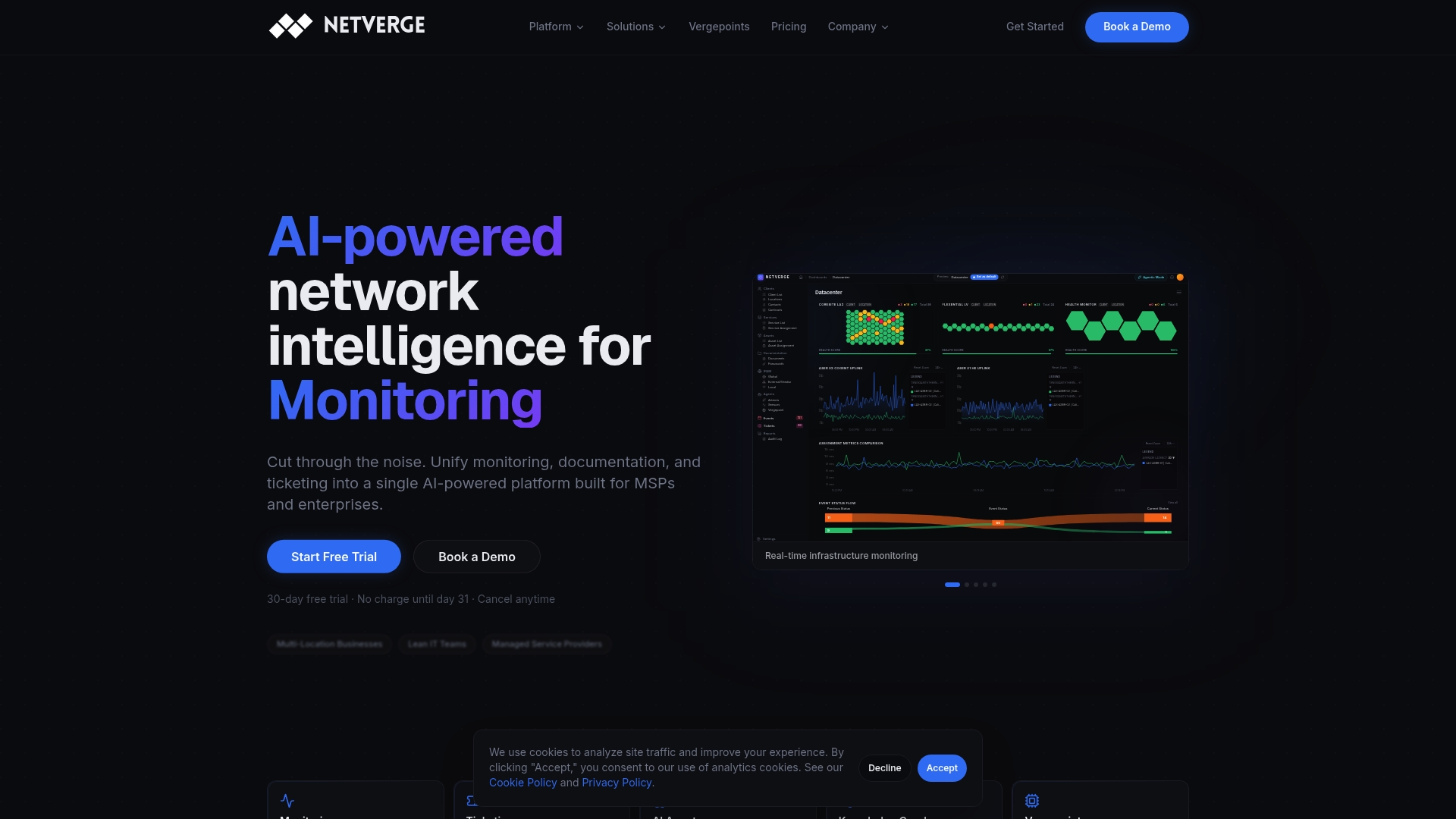
Pricing is published. The Starter Package is $299 per month. On the pricing guide, Hardware Vergepoints are $49 per month per device and Software Vergepoints are $29 per month per Vergepoint. Extra capacity is listed there too: 100 additional monitoring sensors, clients or sites at $100 per month per 100, 10 additional AI agents at $100 per month, and 500GB of storage at $100 per month. Use the pricing calculator to estimate your monthly cost, then start your free trial or request a demo.
FAQ
How do I turn on message alerts in Teams?
On desktop or web, go to Settings and more, then Settings > Notifications and activity, and choose where chat and channel notifications appear. On mobile, open the account manager, select Notifications, and tap All activity. For a single channel, use More options > Channel notifications.
Why am I not getting Teams notifications?
Check the Teams notification settings first, then the device's own notification permissions. On Android, battery optimization can also block alerts. If many people are affected at once, check Microsoft 365 service health and your connectivity to Microsoft 365.
Where do Teams admin alerts go?
Device state alerts go to a channel called MonitoringAlerts in a default team named Admin Alerts and Notifications. Global administrators and Teams administrators are added to that team automatically. You can also send alerts to an external webhook URL so another system receives them.
Do Teams admin alerts need a special license?
Meeting quality alerts for audio, video and screen sharing monitor users who have a Teams Premium or Teams Rooms Pro license. Alerts are available in commercial and GCC cloud environments. Check Microsoft's documentation for your tenant type.
Sources
- Manage notifications in Microsoft Teams (Microsoft Support)
- Customize channel notifications in Microsoft Teams (Microsoft Support)
- Manage Notifications in Microsoft Teams (IT@Cornell)
- Troubleshoot notifications in Microsoft Teams mobile apps
- Troubleshoot Microsoft Teams Free notifications
- Operations for Microsoft Teams (Microsoft Learn)
- Microsoft Teams Monitoring and Alerting (Microsoft Learn)
- Microsoft Teams Devices Monitoring and Alerting (Microsoft Learn)
- Alerts for in-progress meeting video quality issues (Microsoft Learn)
- Microsoft Teams Premium overview for admins (Microsoft Learn)
- Use real-time telemetry to troubleshoot poor meeting quality (Microsoft Learn)
- Microsoft 365 Monitoring (Microsoft Docs on GitHub)