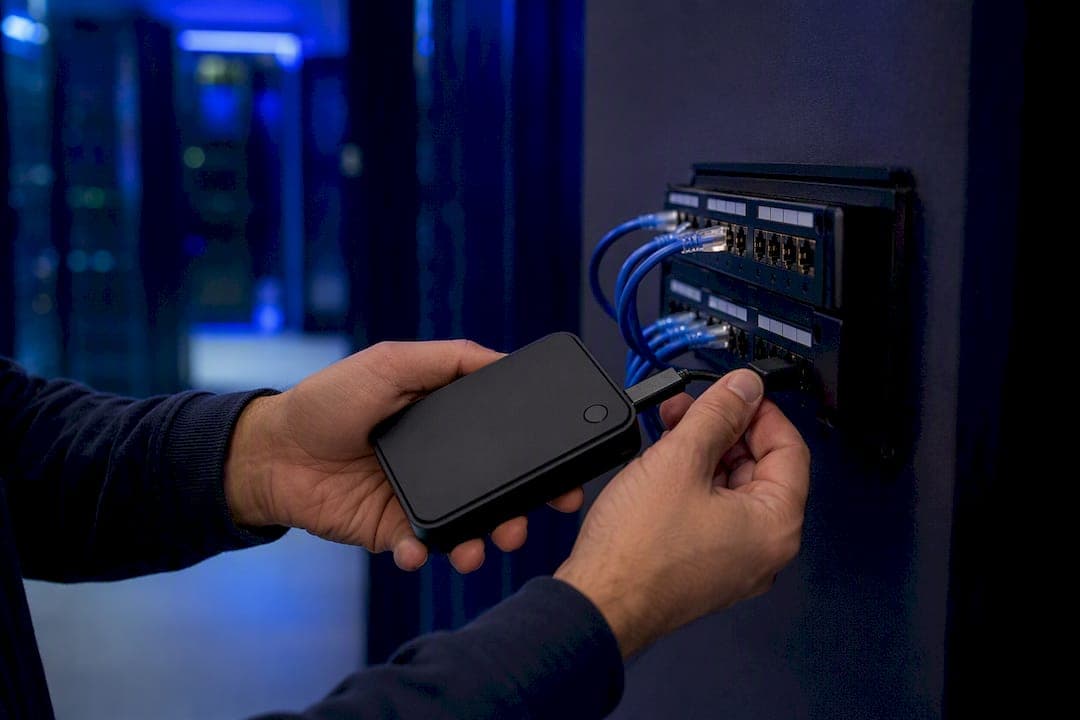
Start with a wired-versus-Wi-Fi baseline test. Run a wired speed test from a workstation over Ethernet, then run a Wi-Fi speed test from that same spot. If wired is fast and Wi-Fi is slow, the fault sits inside the wireless layer. If both are slow, the problem is upstream, likely your ISP circuit or a switch-level bottleneck.
This single test resolves the biggest ambiguity in wifi performance troubleshooting before you touch a spectrum analyzer or open a support ticket.
- Wired fast, Wi-Fi slow: Look at RF, channel congestion, or AP placement.
- Both slow: Check the switch, the router uplink, and the ISP handoff first.
- Intermittent on both: Suspect PoE budget issues or a failing switch port.
Modern networks run on a mix of IEEE 802.11 standards, from Wi-Fi 4 through Wi-Fi 6, 6E, and 7, and each generation changes how much interference and client density a network can absorb. A signal reading weaker than around -67 dBm at the client is generally the threshold where reliable throughput starts to break down. Platforms like Netverge exist specifically to catch these baseline failures before a user ever files a complaint.
Key Takeaways
Resolving wireless performance problems reliably requires a wired baseline test first, layered RF-to-endpoint diagnostics second, and continuous telemetry to catch recurring issues before they escalate.
| Point | Details |
|---|---|
| Start wired, not wireless | Run an Ethernet speed test against a Wi-Fi test from the same spot to isolate the fault layer immediately. |
| Follow the layered sequence | Move from RF to infrastructure to identity to IP rather than jumping straight to hardware replacement. |
| Track the real metrics | Capture RSSI, SNR, channel utilization, retries, and MCS rates, not just a single speed test number. |
| Match fixes to the layer | Channel retuning solves RF problems; VLAN and DHCP fixes solve configuration problems, never swap them. |
| Automate the recurring cases | Netverge correlates RF, AP, and switch telemetry to shorten root-cause time on intermittent, multi-site issues. |
Table of Contents
- Quick Wi-Fi Connection Issues Checklist Before Deep Diagnostics
- How Do You Diagnose the Root Cause Layer by Layer?
- What Tools Should You Use to Measure Wi-Fi Performance?
- Common Wifi Performance Troubleshooting Fixes and Action Plan
- Why Continuous Monitoring Cuts Down Wireless Troubleshooting Time
- Latency and Jitter Troubleshooting
- How Do Security Settings Affect Wi-Fi Performance?
- What This Guide Gets Right That Most Troubleshooting Advice Misses
- Fix Recurring Wi-Fi Issues Faster With Netverge
- Sources
Quick Wi-Fi Connection Issues Checklist Before Deep Diagnostics
Before you pull out a laptop and start packet capturing, run through this five-to-ten-minute pass. It filters out the obvious causes so you don't waste an hour chasing a channel conflict that was really a dead switch port.
- Power-cycle in order: modem first, then router or firewall, then switches, then APs. Order matters because upstream devices need to fully re-establish their link before downstream gear tries to negotiate with them.
- Run the wired-vs-wireless test described above and write down both numbers.
- Swap DNS to a known-good resolver like 1.1.1.1 or 8.8.8.8 and retest. A DNS problem often masquerades as "slow internet."
- Count connected devices on the switch and look for an unauthorized or rogue switch someone plugged in under a desk.
- Confirm PoE is actually reaching each AP and check for obviously damaged or pinched cabling near entry points.
Pro Tip: Keep a simple spreadsheet log of every quick-check result, timestamped. When the issue recurs next month, you'll have a baseline to compare against instead of guessing from memory.
How Do You Diagnose the Root Cause Layer by Layer?
Isolating a wireless problem works best as a sequence: wired infrastructure, then RF, then capacity, then configuration, then the endpoint itself. Skipping a layer is how technicians end up replacing an access point that was never the problem.
Wired infrastructure. Check switch port speed and duplex settings, since a mismatch silently caps throughput without throwing an obvious error. Verify the uplink isn't saturated, run ping and traceroute to spot latency spikes or routing detours, and confirm PoE holds steady voltage under real load, not just at idle. This is where routine cable and port checks catch problems that RF tools never will.
RF layer. Measure RSSI in dBm at multiple points, check signal-to-noise ratio, and pull channel utilization numbers from the controller. Distinguish adjacent-channel interference from co-channel contention, since the fixes differ. On the 5 GHz band, an 802.11 standards guide and enterprise troubleshooting sources both recommend starting with wired verification before chasing RF ghosts.
Capacity. A room that "used to be fine" and now crawls at 2 p.m. every day is usually a capacity problem wearing a coverage disguise. Review client counts per AP, airtime utilization percentage, and MCS (modulation and coding scheme) rate trends. A high retry rate paired with falling MCS values points to a noisy air or clients hanging onto a weak signal instead of roaming.
- Coverage symptom: weak signal in a specific physical zone regardless of time of day.
- Capacity symptom: fine at 8 a.m., unusable by lunch, fine again after 6 p.m.
Configuration and IP. Verify the DHCP scope isn't exhausted, confirm DNS settings, and check VLAN mappings for mismatches. When authentication is the complaint, pull RADIUS or 802.1X logs directly rather than guessing.
Endpoint. Outdated Wi-Fi drivers, an overzealous local firewall, or a misconfigured VPN client account for a surprising share of "network is down" tickets that have nothing to do with the network at all.
Enterprise sources consistently point to this exact sequencing, RF, infrastructure, identity, then IP, as the fastest route to a correct root cause rather than a plausible-sounding guess.
What Tools Should You Use to Measure Wi-Fi Performance?
The right tool depends on whether you're doing a five-minute sanity check or chasing a persistent, hard-to-reproduce complaint.
For quick scans, lightweight client-side apps map nearby SSIDs and show channel occupancy without any special hardware. WiFi Lens, an open-source macOS analyzer, scans 2.4, 5, and 6 GHz bands, builds channel heatmaps, validates roaming behavior, and exports the results as CSV for later comparison. It's a practical first pass for an office-sized deployment.
For persistent RF issues or anything you need to defend in a report, a handheld tester earns its cost. The LinkIQ Duo scans Wi-Fi up to 6E, reports AP, channel, and security details, and doubles as a cable tester validating performance to 10G with PoE load testing up to Class 8, useful when you suspect the wireless symptom is really a wired one in disguise.
| Metric | What It Tells You |
|---|---|
| RSSI (dBm) | Signal strength at the client; below roughly -67 dBm, reliability drops |
| SNR | How much usable signal exists above the noise floor |
| Channel utilization % | How busy the air is on that channel, regardless of your own traffic |
| Retry/packet loss rate | Frames being resent, a sign of RF noise or contention |
| MCS rate | The data rate a client is actually achieving, not just advertised |
| PoE loaded voltage/power | Whether the AP gets stable power once it's actually working |
Always log the time, physical location, device model, and a baseline comparison alongside every reading. A single dBm number means nothing without context for what "normal" looks like in that spot.
Common Wifi Performance Troubleshooting Fixes and Action Plan
Once you know which layer is broken, the fix is usually mechanical, not mysterious.
- Wired problems: Re-terminate suspect cabling, test with a proper cable tester rather than a visual check, and fix duplex mismatches or upgrade aging switch ports.
- RF and interference: Retune channel assignments, narrow channel width in dense areas (20 MHz often beats 40 or 80 MHz when neighbors overlap), reduce transmit power on APs that are shouting over each other, and physically relocate or remove interference sources like microwave-adjacent equipment.
- Capacity: Add APs only after a proper site survey confirms where they're actually needed, enable band steering to push capable clients to 5 GHz or 6 GHz, segment traffic by VLAN, and apply QoS to protect real-time voice and video.
- Configuration: Correct VLAN mappings, renew stale DHCP scopes, resolve RADIUS or certificate errors, and check firmware versions on both APs and controllers.
- Validate: Re-run the exact tests that flagged the problem, walk the space with a heatmap tool to confirm roaming behavior, and monitor for 24 to 72 hours before calling it closed.
Pro Tip: Never close a ticket right after the fix. Intermittent RF issues often reappear once the building fills back up with people and devices during peak hours, so the real test is tomorrow's lunch rush, not today's quiet afternoon.
Why Continuous Monitoring Cuts Down Wireless Troubleshooting Time
Manual triage works, but it's slow when the same intermittent issue keeps resurfacing across five locations and nobody has time to walk each one with a handheld tester every week.
Netverge continuously collects telemetry across RF, access point, and switch metrics, then correlates events across layers instead of leaving a technician to manually cross-reference three separate dashboards. That correlation is what turns a two-hour log hunt into a five-minute root-cause read.
- Real-time visibility into signal, channel utilization, and switch health without a site visit
- Automated anomaly detection that flags drift before users start complaining
- Automated diagnostics that cut the manual log-chasing typical of recurring wireless tickets
When the same "slow Wi-Fi" ticket comes from three different branches in a month, that's not three separate incidents. It's one infrastructure pattern that manual, site-by-site troubleshooting will keep missing.
Multi-site operations, high-density environments, and anything with a recurring intermittent signature are exactly where an automated platform earns its keep over a purely manual troubleshooting workflow.
Latency and Jitter Troubleshooting
Throughput numbers can look fine while a video call still stutters, because latency and jitter are separate problems from raw speed. Latency measures how long a packet takes to arrive; jitter measures how much that delay varies from packet to packet. Voice and video are far more sensitive to jitter than to a modest drop in overall bandwidth.
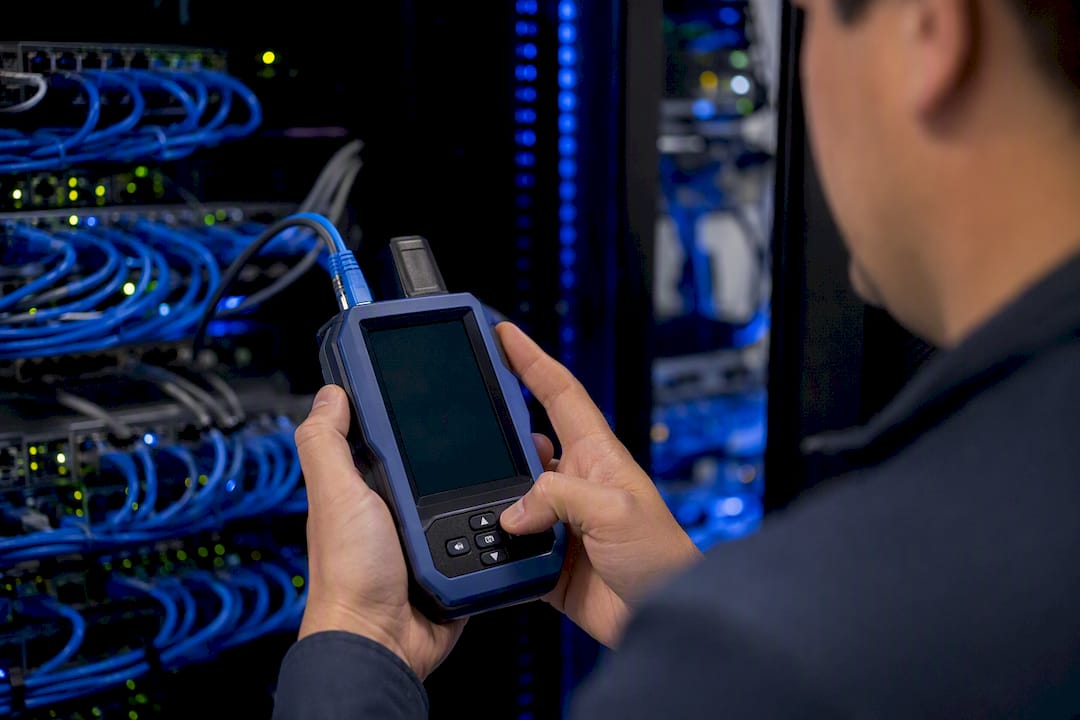
Start by pinging a stable, nearby target (your own gateway, then a public resolver) and watch for consistent round-trip times versus wild swings. A steady but high latency usually points to a distant or congested upstream path. Wildly inconsistent latency, jitter, more often points to airtime contention or a client bouncing between APs.
On the wireless side, retries are the usual jitter culprit. Every retransmitted frame adds delay, and a client stuck on a weak signal will retry constantly even while showing a "connected" status. Check retry percentage alongside RSSI before blaming the application.
QoS tagging helps, but only if it's configured consistently end to end. Tagging voice traffic at the switch does nothing if the AP or the upstream router strips or ignores that tag. Confirm the tag survives the entire path, not just the first hop.
Buffering settings on the router itself matter too. Excessive buffering (sometimes called bufferbloat) can add hundreds of milliseconds of latency under load even when raw throughput looks healthy on a speed test. A dedicated bufferbloat test, separate from a standard speed test, catches this specific failure mode.
How Do Security Settings Affect Wi-Fi Performance?
Encryption and authentication choices aren't just a security decision. They carry a measurable performance cost, and the wrong combination can look exactly like a coverage or capacity problem.
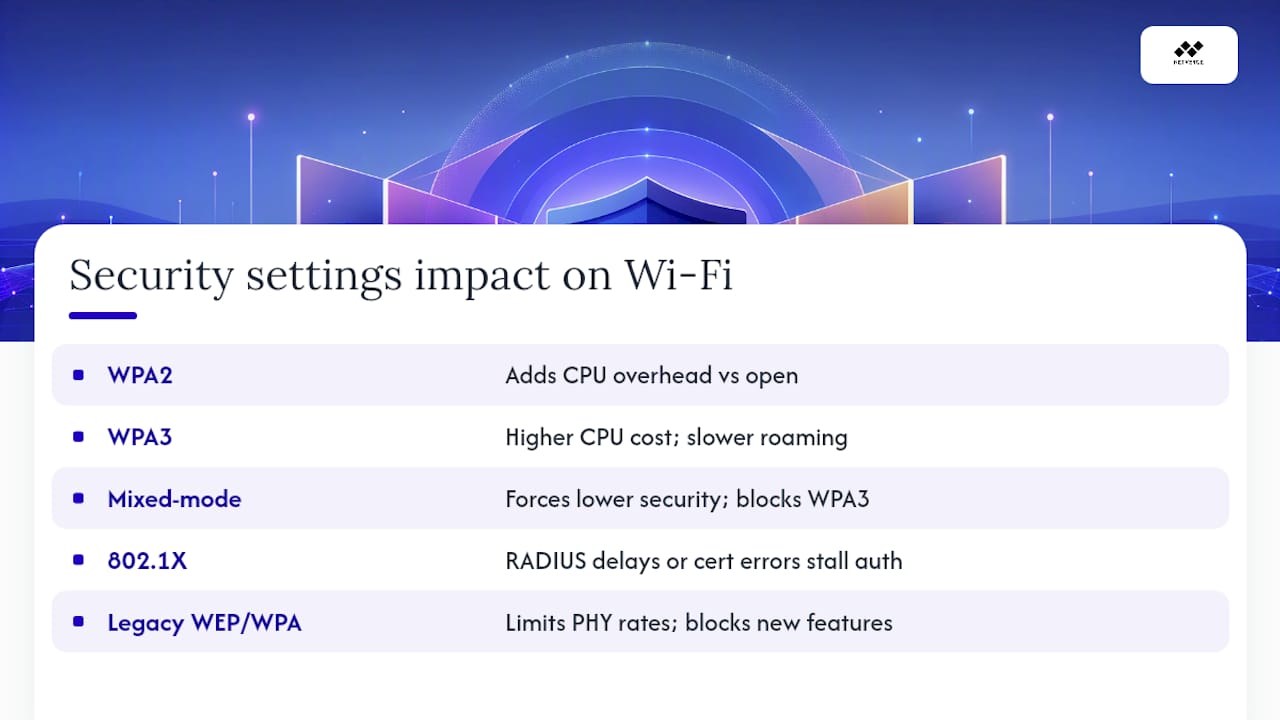
WPA2 and WPA3 both add processing overhead versus an open network, but WPA3's Simultaneous Authentication of Equals handshake is more computationally demanding than WPA2's four-way handshake. On underpowered or older client hardware, that can add a small but noticeable delay to reconnection and roaming, especially in environments with frequent AP-to-AP handoffs.
Mixed-mode security, where a network supports both WPA2 and WPA3 simultaneously for compatibility, forces the AP to negotiate the lowest common security level with older clients. That's often necessary for device compatibility, but it means the network can't take full advantage of WPA3's improvements until legacy clients are phased out.
802.1X authentication through RADIUS introduces its own failure mode: certificate errors or a slow RADIUS server response can cause clients to hang during authentication, which looks identical to a dead access point from the user's perspective. Always check RADIUS logs before assuming an AP problem when authentication, not connection, is where clients get stuck.
Legacy encryption like WEP or WPA (original) should be retired outright. Beyond the obvious security risk, older encryption ties clients to lower PHY rates and blocks access to newer 802.11 features entirely, capping throughput regardless of how strong the signal is.
What This Guide Gets Right That Most Troubleshooting Advice Misses
Most Wi-Fi troubleshooting content treats every slow connection as an RF problem, which sends technicians straight to channel scanners when the actual fault is a duplex mismatch on a switch port three closets away. The wired-vs-wireless baseline test matters precisely because it stops that reflex before it wastes an afternoon.
The conventional advice also underweights capacity. A network that performs fine at 9 a.m. and collapses by 2 p.m. gets treated like a coverage complaint, and someone adds an access point that does nothing because the real constraint was airtime contention among clients already in range. Reading MCS rate trends and retry counts before touching AP placement would catch this every time.
Where I'd push readers hardest: stop treating each ticket as a one-off. If the same intermittent symptom shows up at multiple sites in a month, that's a pattern a spreadsheet log will never surface fast enough. Continuous telemetry catches drift while it's still small, which is the entire argument for tools like Netverge over ad hoc handheld checks. The technicians who adopt that instinct early spend far less time re-diagnosing the same failure twice.
— Jim
Fix Recurring Wi-Fi Issues Faster With Netverge
Manual triage gets you to a root cause eventually, but Netverge gets you there before the second ticket comes in from the same branch. Where a handheld tester or a one-time site survey gives you a snapshot, Netverge gives you continuous telemetry across RF, AP, and switch layers, correlated automatically instead of cross-referenced by hand.
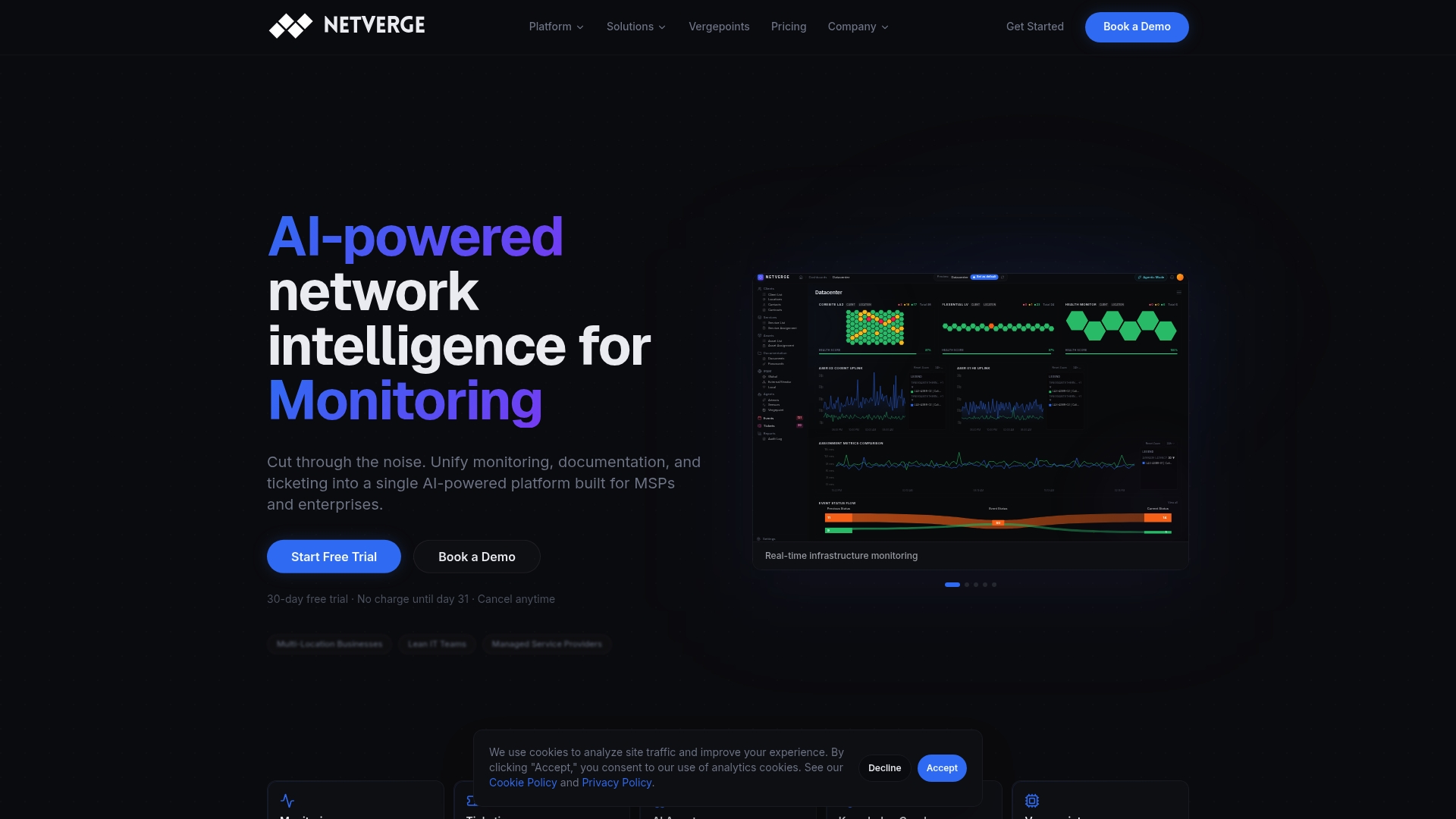
That correlation matters most for multi-site operations and MSPs managing dozens of networks at once, where the same intermittent Wi-Fi complaint might be showing up in three different cities without anyone noticing the pattern. Netverge's AI-powered monitoring flags that drift automatically, and its ticketing and triage tools route the right diagnostic data to the technician before they even open a session. If your team is still relying on quarterly site surveys and manual log pulls to catch recurring wireless problems, start a trial and see what continuous visibility actually catches.
Sources
- LinkIQ Duo product page — Fluke
- Troubleshooting Enterprise Wi‑Fi to Ensure Best Performance — Fluke Networks blog
- Business WiFi troubleshooting guide — Ascio Wireless
- Technical deep-dive: Troubleshooting Wi‑Fi network connectivity issues in enterprises — ITU Online