
Windows Delivery Optimization is a built-in, cloud-managed HTTP downloader that pulls content from three sources simultaneously: the Microsoft CDN, peer-to-peer devices on your network, and Microsoft Connected Cache nodes. It does not replace Windows Update. It sits underneath it, controlling how bytes move across your infrastructure. For enterprise IT teams managing hundreds or thousands of Windows endpoints, getting Delivery Optimization configured correctly is one of the highest-leverage actions you can take to reduce WAN congestion and accelerate patch cycles.
The core value proposition is straightforward. Instead of every device pulling a 2 GB update payload directly from Microsoft's CDN, Delivery Optimization lets devices share content with each other over TCP port 7680, with the CDN always available as a fallback. Add a Microsoft Connected Cache node on-premises, and you cut external bandwidth consumption further by serving cached content from inside your own network. The result is faster deployments, lower internet egress costs, and less disruption during Patch Tuesday windows.
Key capabilities at a glance:
- Multi-source downloads: Peers, Microsoft Connected Cache, and CDN operate in parallel, not sequentially.
- Bandwidth management: LEDBAT and rLEDBAT algorithms throttle P2P and HTTP traffic dynamically to avoid congestion.
- Policy-driven control: Every meaningful behavior, from peer group scope to cache drive location, is configurable via Group Policy or Microsoft Intune MDM.
- Windows Update for Business integration: Delivery Optimization works natively with Windows Update for Business deployment rings, respecting scheduling and deferral policies.
- CDN fallback guarantee: Peer-to-peer is an optimization layer. If peers or cache nodes are unavailable, downloads continue from the CDN without administrator intervention.
How do you configure Delivery Optimization settings for your environment?
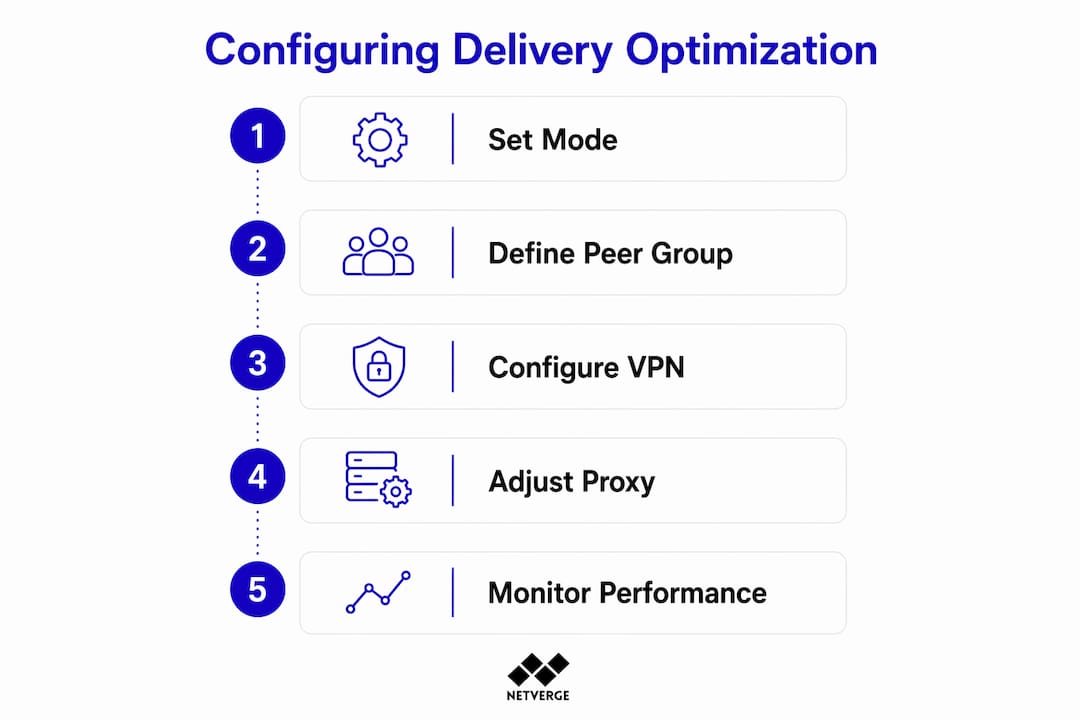
Configuration is where most enterprise deployments either succeed or stall. Delivery Optimization exposes a large set of policy-driven settings through the DeliveryOptimization Policy CSP, all manageable via Microsoft Intune or Group Policy. The settings fall into four functional categories: download behavior, bandwidth management, peer-to-peer controls, and Microsoft Connected Cache policies.

Download mode and peer group settings
DODownloadMode is the first policy to configure. It determines which sources a device can use:
- Mode 0 (HTTP only): Disables P2P entirely. Use this for highly secured segments or devices that must not participate in peering.
- Mode 1 (LAN, default): Peers share content with devices behind the same public IP address. Works well for single-site organizations.
- Mode 2 (Group): Peering crosses NAT boundaries within a defined group. This is the recommended mode for most enterprises with multiple subnets or remote offices.
- Mode 3 (Internet): Allows peering with devices outside your organization. Rarely appropriate in enterprise environments.
- Mode 99 (Simple): Disables cloud service communication entirely. Use only for offline or air-gapped devices.
Avoid setting DODownloadMode to 100 (Bypass). Starting with Windows 11, this mode is deprecated and causes certain content downloads to fail with error code 0x80d03002.
For Group mode, pair DODownloadMode(2) with DOGroupId (a custom GUID) or DOGroupIdSource to map devices to Active Directory sites, authenticated domains, or DHCP options. This lets you create peer groups that align with your physical network topology rather than relying on NAT boundaries alone.
Bandwidth management
Delivery Optimization targets a portion of available bandwidth for background and foreground downloads by default, with configurable bandwidth caps. You can override these with:
DOPercentageMaxBackgroundBandwidthandDOPercentageMaxForegroundBandwidthfor percentage-based caps.DOMaxBackgroundDownloadBandwidthandDOMaxForegroundDownloadBandwidthfor absolute KB/s limits.DOSetHoursToLimitBackgroundDownloadBandwidthandDOSetHoursToLimitForegroundDownloadBandwidthfor time-of-day throttling during business hours.
Note that DOMaxDownloadBandwidth and DOMaxUploadBandwidth are deprecated in current Intune templates. Use the foreground and background variants instead.
Cache configuration
DOMaxCacheSizesets the cache as a percentage of available drive space (default 20%).DOAbsoluteMaxCacheSizesets a hard GB ceiling, overriding the percentage setting.DOMaxCacheAgecontrols how long files stay cached (default 259,200 seconds, or three days). Extending this to seven days or more on plugged-in, high-disk devices improves peer availability.DOModifyCacheDriveredirects the cache to a non-OS drive using an environment variable, drive letter, or full path.
VPN and delay policies
By default, Delivery Optimization suspends uploads when it detects a VPN connection. Use DOAllowVPNPeerCaching to permit peering over VPN when appropriate, and DOVpnKeywords to help Delivery Optimization correctly identify your specific VPN adapter. Delay policies like DODelayBackgroundDownloadFromHttp and DODelayCacheServerFallbackBackground control how long the client waits before falling back to the CDN, giving peers and cache nodes time to serve content first.
Proxy and TLS considerations
Delivery Optimization supports both local and cloud proxy configurations, but TLS-inspecting proxies require special handling. Proxies must bypass Delivery Optimization domains (specifically *.do.dsp.mp.microsoft.com) to prevent broken certificate chains that disrupt cache node deployment and operation.

How does peer-to-peer technology work inside Delivery Optimization?
Delivery Optimization's P2P mechanism is cloud-coordinated, not broadcast-based. When a download starts, the Delivery Optimization client contacts the cloud service, which matches the device with peers that hold the same content. The client then connects to those peers over TCP port 7680 and downloads content in parallel from peers, Connected Cache nodes, and the CDN simultaneously.
Peer discovery and content verification
The cloud service uses two components for peer matching: a Discovery service that routes clients to the nearest Array service instance, and the Array service itself, which maintains a registry of which devices hold which content. On Windows 11 version 22H2 and later, DNS-SD (mDNS) local peer discovery supplements cloud-based matching, allowing devices to find local peers even when a VPN is active. This is particularly useful for remote workers whose VPN connections would otherwise suppress peering entirely.
Content integrity is enforced through a Pieces Hash File (PHF), which contains SHA-256 hashes for every piece of a download. Every piece received from a peer is verified against the PHF before acceptance. If a peer sends an invalid piece repeatedly, Delivery Optimization bans that peer for the session. If the PHF itself cannot be verified, the download falls back to HTTP-only mode automatically.
P2P efficiency expectations
P2P efficiency in enterprise environments typically ranges from 30% to 50%. Organizations with larger peer groups using Group DownloadMode can reach 60% to 70%. These figures are best-effort, not guaranteed. Device availability, VPN usage, and download timing all affect results. The most predictable bandwidth savings come from combining P2P with Microsoft Connected Cache nodes, not from relying on P2P alone.
Upload slot limits and cache management
Each device exposes a limited number of upload slots for cached content available to peers at any given time. Delivery Optimization rotates content through those slots based on internal logic. To increase the pool of content eligible for peering, lower DOMinFileSizeToCache from its default of 50 MB to 10 MB for environments with more than 30 devices, or to 1 MB for environments exceeding 100 devices. For mobile-heavy environments, set DOMinBatteryPercentageAllowedToUpload to 60% to enable peering on battery-powered devices.
Bandwidth throttling during P2P
Starting with Windows 11 version 22H2, Delivery Optimization uses LEDBAT and rLEDBAT to manage congestion. LEDBAT governs P2P connections (server-side), while rLEDBAT governs HTTP and Connected Cache connections (receiver-side), particularly for background downloads. Both algorithms yield bandwidth to competing traffic, so Delivery Optimization activity does not degrade user-facing applications during business hours.
What is Microsoft Connected Cache and how do you deploy it?
Microsoft Connected Cache (MCC) is a free, software-only caching solution that you deploy on hardware inside your network. It intercepts content requests from managed Windows devices and serves cached Microsoft content locally, eliminating repeated CDN pulls for the same payload. A single MCC node can serve up to 35,000 managed devices at a sustained throughput of 6.5 Gbps over a 24-hour window, making it viable for large enterprise sites without requiring multiple nodes.
Supported host platforms and prerequisites
MCC runs on Windows Server 2022 or later, Ubuntu 24.04, and Windows 11 client machines. The Azure management portal manages node creation and configuration, while deployment uses an OS-specific package installed on the host machine. You need a pay-as-you-go Azure subscription to onboard, but the MCC service itself carries no additional charge. Each cache drive must meet a minimum size requirement. You can configure up to nine cache drives per node.
Deployment steps
- Create a Microsoft Connected Cache resource in the Azure portal.
- Under Cache Node Management, select Cache Nodes, then Create Cache Node. Assign a unique name and select the target host OS.
- Once the node state changes to "Not Configured," proceed with configuration via the Azure portal or Azure CLI.
For a Linux-hosted node, the Azure CLI command accepts parameters for cache drive path, drive size, proxy settings, and update ring scheduling. For a Windows-hosted node, the deployment uses a PowerShell script with parameters including -installationFolder, -mccRunTimeAccount, and -shouldUseProxy.
A critical security requirement: the administrator account used for deployment cannot be the same account designated as the Connected Cache runtime account. This separation prevents tampering with the cache container and its stored content. On Windows hosts, the Windows IP Helper service (iphlpsvc) must be enabled, as MCC uses netsh portproxy to forward traffic to the WSL distribution running the cache container.
Proxy configuration for MCC
If your host machine sits behind a TLS-inspecting proxy such as ZScaler, place the proxy certificate file (.pem) in the installation folder and add -proxyTlsCertificatePemFileName to the deployment command. For Linux deployments, use the proxytlscertificatepath parameter instead. Failing to configure this correctly breaks the certificate chain and prevents the cache node from deploying or operating.
Pointing devices at the cache node
Once deployed, configure managed devices to request content from the MCC node by setting the DOCacheHost or DOCacheHostSource policy via Intune, a DHCP custom option (Option 235), or a registry key. When multiple Connected Cache servers are listed, the Delivery Optimization client contacts them in order. If the cache node is unavailable, devices fall back to the CDN. Use DODelayCacheServerFallbackBackground and DODelayCacheServerFallbackForeground to delay that fallback and give the cache node time to respond before clients bypass it.
Pro Tip: When configuring both HTTP delay policies and cache server delay policies, set the cache server delay value higher than the HTTP delay. Both timers start simultaneously from the beginning of a download, so if they are equal, fallback from MCC to the CDN becomes immediate once the HTTP delay expires.
How should you implement Delivery Optimization across your network infrastructure?
Delivery Optimization performs best when its configuration mirrors your physical network. Treating it as a simple toggle produces mediocre results. Treating it as a set of tunable parameters aligned with your network architecture produces measurable bandwidth savings. The guidance below covers the most common enterprise scenarios.
Local peer grouping and WAN protection
The single most impactful configuration decision is keeping P2P traffic off your WAN links. Use Group mode (DODownloadMode 2) with a Group ID mapped to your AD site or a custom GUID per physical location. This confines peer traffic to devices within the same site. If you have multiple subnets behind the same NAT and want subnet-level isolation, combine DODownloadMode(1) with DORestrictPeerSelectionBy(Subnet). For network topology alignment, this approach prevents a device in one building from pulling peer content across a constrained inter-building link.
Firewall and port requirements
Open TCP port 7680 for inbound and outbound traffic on all devices participating in P2P. Blocking this port disables all peer sharing; downloads continue via CDN but without any bandwidth savings. Also open TCP port 443 for Delivery Optimization cloud service communication (discovery and peer matching) and TCP port 80 for content metadata and CDN payload delivery. The key cloud service domains to allow are:
disc*.prod.do.dsp.mp.microsoft.com(port 443, peer discovery)array*.prod.do.dsp.mp.microsoft.com(port 443, peer matching)dl.delivery.mp.microsoft.comand*.windowsupdate.com(port 80, metadata)
SD-WAN and hybrid environments
On SD-WAN architectures, Delivery Optimization's Group mode pairs well with SD-WAN traffic policies. Assign Group IDs that align with SD-WAN site identifiers so peer traffic stays on local breakout paths rather than traversing the overlay. For hybrid cloud environments with both on-premises and cloud-managed devices, deploy MCC nodes at each physical site and use DOCacheHostSource to let devices discover the nearest cache node dynamically.
Remote and VPN-connected workforces
VPN detection in Delivery Optimization works by scanning the network adapter's description and friendly name for keywords like "VPN" or "secure." Use DOVpnKeywords to add your organization's specific VPN adapter strings. On Windows 11 networks, enabling mDNS peer discovery via the "Local Peer Discovery" restriction policy lets VPN-connected devices find local peers without relying on the cloud service, which is particularly valuable for remote workers on split-tunnel VPNs.
Multi-tenant architectures
In multi-tenant or shared-infrastructure environments, use distinct Group IDs per tenant to prevent cross-tenant peer sharing. Apply Intune configuration profiles scoped to tenant-specific device groups, and deploy separate MCC nodes per tenant if content isolation is a compliance requirement.
Pro Tip: Align your Delivery Optimization Group IDs with your existing AD site topology or DHCP scope structure. This one-time mapping effort localizes peer communications to high-speed segments and eliminates the most common source of unexpected WAN congestion from Delivery Optimization traffic.
What are the best practices and how do you troubleshoot common issues?
Getting Delivery Optimization deployed is step one. Keeping it performing well across a changing environment requires deliberate maintenance and a clear troubleshooting process.
Recommended practices
- Schedule downloads around business hours. Use
DOSetHoursToLimitBackgroundDownloadBandwidthto cap background bandwidth during peak usage windows and release the cap overnight. - Set delay policies before major deployments. For Patch Tuesday cycles, configure
DODelayBackgroundDownloadFromHttpto 60 seconds andDODelayForegroundDownloadFromHttpto 30 seconds. This gives peers and cache nodes time to serve content before the CDN is contacted. - Tune
DOMinBackgroundQoSbelow your average download speed. If your average site speed is 1,000 KB/s, set this policy to 500 KB/s. This keeps HTTP connections open as a supplement to peers rather than closing them prematurely. - Extend
DOMaxCacheAgeon always-on devices. Devices that are plugged in and have ample disk space make excellent upload sources. Setting cache age to seven days or more keeps content available for peers longer. - Use
DOMinFileSizeToCachestrategically. Lower the threshold to 1 MB in large environments (more than 100 devices) to maximize the pool of content eligible for peering.
Common issues and troubleshooting steps
Peer discovery failures are the most frequent complaint. Check that TCP port 7680 is open on all relevant firewalls and that the Delivery Optimization service (dosvc) is running. The service shuts down when idle (no active transfers), so it will not be listening on port 7680 between download sessions. This is expected behavior, not a fault.
Cache node unavailability usually traces to one of three causes: the iphlpsvc service is disabled on the Windows host, the TLS-inspecting proxy is intercepting *.do.dsp.mp.microsoft.com traffic, or the runtime account matches the deployment account. Verify each in that order.
Download errors with error code 0x80d03002 indicate that DODownloadMode is set to 100 (Bypass). Change it to 0 to disable P2P while keeping Delivery Optimization functional, or to 1 or 2 to enable peering.
Certificate failures during MCC deployment almost always point to a TLS proxy that is not bypassing Delivery Optimization service domains. Configure the proxy exclusion for *.do.dsp.mp.microsoft.com and redeploy.
For event log analysis, check the Microsoft-Windows-DeliveryOptimization/Operational log in Event Viewer. Filter for errors and warnings during the deployment window to identify connectivity failures, peer banning events, or fallback triggers. For MCC-specific diagnostics, the Azure portal displays cache node status and metrics in real time.
Policy enforcement consistency
In environments using both Group Policy and Intune, policy conflicts can silently override your Delivery Optimization settings. Audit the effective policy on a representative device using Get-DeliveryOptimizationStatus and Get-DeliveryOptimizationPerfSnap in PowerShell. These cmdlets show active settings, current download mode, bytes from peers versus CDN, and cache utilization, giving you a ground-truth view of what is actually running.
How does AI-driven network monitoring improve Delivery Optimization management?
Delivery Optimization generates a continuous stream of telemetry: bytes from peers, bytes from CDN, cache hit rates, peer counts, and bandwidth consumption per device. Without a monitoring layer that can correlate this data across your entire fleet, you are flying blind. AI-driven platforms change that by detecting anomalies, predicting demand spikes, and automating responses before issues affect end users.
Real-time anomaly detection and automated response
An AI-powered monitoring platform continuously analyzes network telemetry to identify patterns that precede delivery failures, such as a sudden drop in peer availability at a specific site or a cache node that stops reporting metrics. Rather than waiting for a helpdesk ticket, the platform flags the anomaly, correlates it with infrastructure state (is the MCC host machine reachable? Is port 7680 blocked?), and triggers automated troubleshooting workflows. This reduces mean time to resolution from hours to minutes.
Bandwidth optimization through predictive insights
AI models trained on historical download patterns can forecast when Patch Tuesday traffic will peak at each site and recommend preemptive adjustments to Delivery Optimization delay policies and bandwidth caps. For example, if telemetry shows that a particular branch office consistently exhausts its WAN capacity between 9:00 AM and 11:00 AM on the second Tuesday of each month, the platform can automatically tighten background bandwidth limits during that window and relax them overnight.
Pro Tip: Use AI-generated demand forecasts to pre-stage content on MCC nodes before major deployment events. Scheduling cache refreshes 12–24 hours ahead of a Patch Tuesday window ensures the cache is warm when devices start requesting updates, maximizing cache hit rates from the first download.
Netverge for Delivery Optimization environments
Netverge's AI-powered monitoring platform provides real-time infrastructure visibility across distributed networks, with autonomous AI agents that detect and diagnose delivery bottlenecks without manual intervention. For MSPs and enterprises running Delivery Optimization at scale, Netverge correlates Delivery Optimization telemetry with broader network health data, including interface utilization, latency, and device reachability, to give you a unified view of content delivery performance. Intelligent ticket triage routes Delivery Optimization-related incidents to the right team with full context already attached, eliminating the back-and-forth that slows resolution.
Key capabilities relevant to Delivery Optimization management:
- Anomaly detection: Identifies peer discovery failures, cache node outages, and bandwidth policy violations in real time.
- Automated troubleshooting: AI agents run connectivity checks, verify policy enforcement, and escalate only when human intervention is required.
- Predictive bandwidth management: Forecasts peak demand periods and recommends policy adjustments before congestion occurs.
- Unified telemetry correlation: Links Delivery Optimization metrics with network infrastructure state for root-cause analysis.
- Multi-site visibility: Tracks network performance across all locations from a single dashboard, critical for enterprises with distributed MCC deployments.
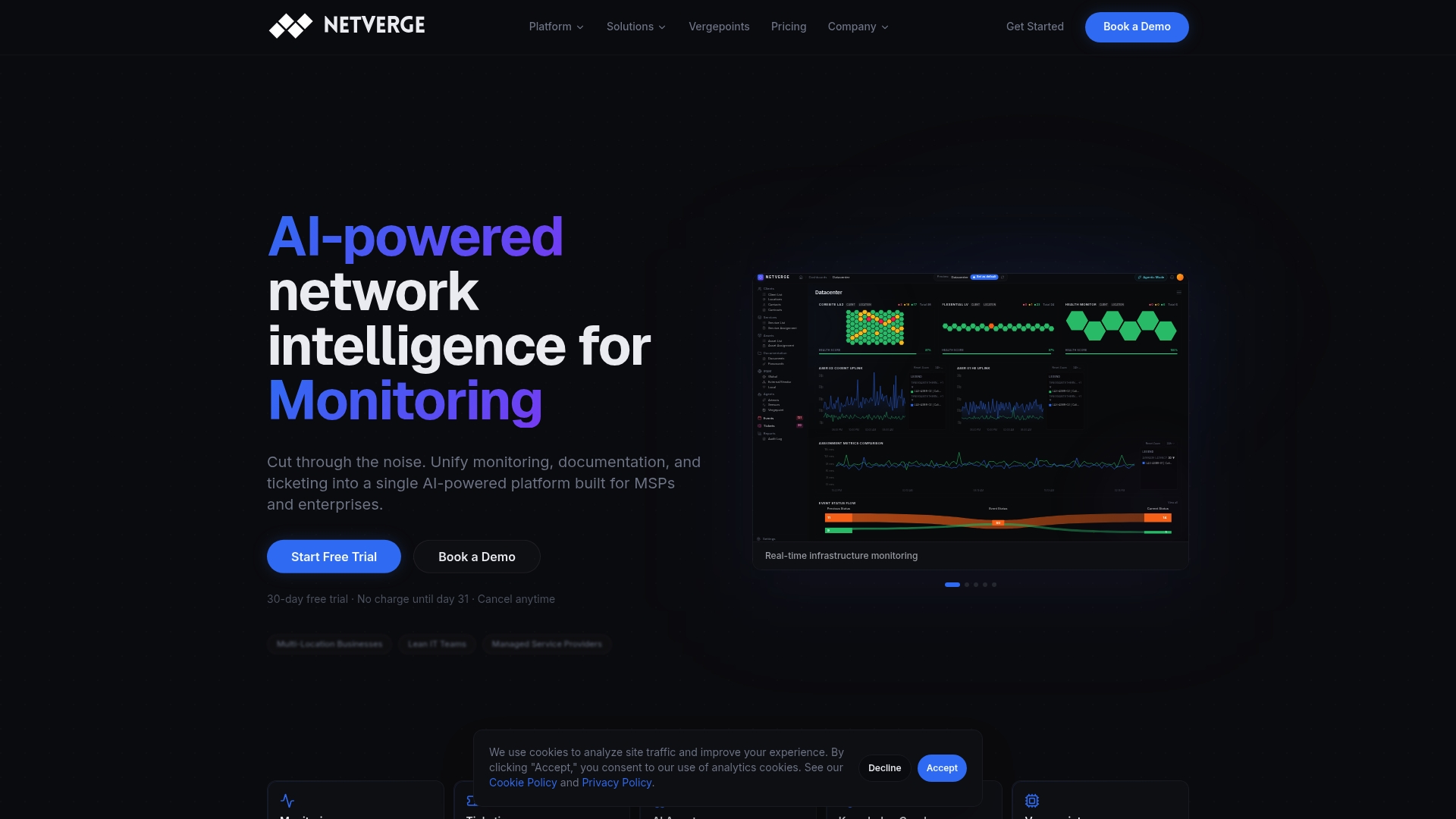
Netverge integrates with your existing MDM and monitoring stack, so you do not need to replace your current tooling to gain AI-driven observability over Delivery Optimization. Start with Netverge's monitoring platform to see how autonomous network intelligence changes the way your team manages content delivery at scale.
What reporting and analytics tools does Delivery Optimization provide?
Delivery Optimization ships with several built-in reporting mechanisms, and Microsoft has expanded analytics coverage through Windows Update for Business reports and the Azure portal for MCC nodes.
Windows Update for Business reports
Windows Update for Business reports (available through Azure Monitor and Log Analytics) provide fleet-wide visibility into update compliance, delivery source breakdown, and bandwidth consumption. For Delivery Optimization specifically, the reports surface:
- Bytes from peers vs. CDN vs. Connected Cache: Shows the actual source distribution across your device fleet, letting you measure P2P efficiency against the 30%–50% typical enterprise range.
- Cache node utilization: Displays hit rates and throughput per MCC node, helping you identify underperforming nodes or sites where an additional node would reduce CDN traffic.
- Device compliance status: Tracks which devices have successfully applied updates, correlated with their Delivery Optimization configuration.
Azure portal for Microsoft Connected Cache
The Azure management portal for MCC displays real-time and historical metrics for each cache node, including:
- Content served (GB) per time period
- Cache hit rate per content type
- Node health and connectivity status
- Throughput over time
These metrics are essential for validating that your MCC deployment is actually reducing CDN egress. If a node shows low hit rates despite high device counts, the likely cause is either a misconfigured DOCacheHost policy or a fallback delay that is too short.
PowerShell cmdlets for local diagnostics
For per-device diagnostics, PowerShell provides two key cmdlets:
Get-DeliveryOptimizationStatus: Returns the current download mode, active peers, bytes downloaded from each source, and cache size.Get-DeliveryOptimizationPerfSnap: Returns a performance snapshot including upload and download statistics, peer counts, and efficiency percentages.
These cmdlets are your fastest path to ground-truth data when troubleshooting a specific device or validating that a policy change took effect. Run them immediately after a major deployment to confirm that peer and cache sources are contributing as expected.
How does network topology affect Delivery Optimization performance?
Network topology is the single largest variable in Delivery Optimization outcomes. The same configuration that delivers strong P2P efficiency on a flat LAN can produce zero peer sharing on a hub-and-spoke WAN.
Flat LAN environments
LAN mode (Mode 1) works well here. Devices share the same public IP, peer discovery is straightforward, and TCP port 7680 traffic stays local. P2P efficiency in well-configured flat LAN environments typically ranges from 30% to 50%. Organizations with larger peer groups using Group DownloadMode can reach 60% to 70%. These results depend on device numbers and network conditions.
VPN environments
VPN connections suppress peering by default. For split-tunnel VPN configurations, mDNS local peer discovery on Windows 11 allows devices to find local peers using the local network stack, bypassing the VPN tunnel for peer traffic. For full-tunnel VPN users where all traffic routes through the tunnel, deploy an MCC node at the VPN termination point or at the user's home office site to provide a local cache source.
SD-WAN architectures
SD-WAN introduces dynamic path selection that can confuse Delivery Optimization's peer matching. Devices at the same physical site may appear to have different public IPs depending on which uplink the SD-WAN selects. Group mode with a static Group ID per site resolves this by decoupling peer group membership from IP-based matching. Pair this with SD-WAN traffic policies that route TCP port 7680 traffic over local breakout paths to prevent peer traffic from traversing the overlay network.
Multi-site enterprises with MCC
For enterprises with multiple sites, deploy one MCC node per site and assign site-specific Group IDs. This architecture ensures that devices at each site pull from a local cache node first, peer with local devices second, and only contact the CDN when both local sources are exhausted. The combination of local MCC nodes and Group mode P2P produces the most predictable bandwidth savings in constrained enterprise environments.
How does Delivery Optimization work alongside other content delivery mechanisms?
Delivery Optimization does not operate in isolation. It coexists with several other content delivery technologies in most enterprise environments, and understanding the interaction points prevents conflicts and gaps.
Windows Update for Business
Delivery Optimization is the transport layer for Windows Update for Business. Update rings, deferral policies, and deployment deadlines set in Windows Update for Business determine when devices download content. Delivery Optimization determines how that content moves across your network. The two systems are complementary: Windows Update for Business controls scheduling and compliance, while Delivery Optimization controls bandwidth and source selection.
Microsoft Intune and Configuration Manager
In co-managed environments, devices may receive content from both Intune (cloud) and Configuration Manager (on-premises). Delivery Optimization handles cloud-sourced content (Win32 apps, monthly updates via Intune). Configuration Manager's own distribution point infrastructure handles on-premises content. The two delivery mechanisms do not conflict, but you should monitor both independently to avoid attributing Configuration Manager traffic to Delivery Optimization metrics or vice versa.
Windows Autopilot
MCC supports Windows Autopilot deployment scenarios, caching the large OS and app payloads that Autopilot downloads during device provisioning. For organizations provisioning large numbers of devices simultaneously, an MCC node dramatically reduces the CDN load during Autopilot events. Configure the DOCacheHost policy in the Autopilot profile to point new devices at the MCC node from their first boot.
Branch Cache
Branch Cache and Delivery Optimization serve overlapping purposes but use different protocols and management surfaces. Branch Cache uses SMB and HTTP caching at the network level, while Delivery Optimization uses a custom binary protocol over TCP port 7680. Microsoft's current guidance favors Delivery Optimization with MCC over Branch Cache for Windows 10 and Windows 11 environments, as MCC provides cloud-managed deployment, Azure portal visibility, and tighter integration with Intune policies. Branch Cache remains relevant for on-premises file server scenarios that Delivery Optimization does not cover.
Third-party CDN and proxy caching
Some enterprises use third-party CDN acceleration or proxy caching appliances (such as Squid or commercial WAN optimization devices) alongside Delivery Optimization. These can coexist, but TLS-inspecting proxies must exclude Delivery Optimization service domains from interception. Transparent HTTP caching proxies can cache CDN content served to Delivery Optimization clients, but they do not participate in the P2P peer matching process and do not replace MCC functionality.
Key Takeaways
Combining Group mode peer-to-peer with Microsoft Connected Cache nodes and AI-driven monitoring produces the most reliable bandwidth savings and fastest issue resolution for enterprise Delivery Optimization deployments.
| Point | Details |
|---|---|
| Set DownloadMode to Group (2) | Group mode confines P2P traffic to defined peer groups, preventing WAN congestion across sites. |
| Deploy MCC nodes at each site | A single MCC node serves up to 35,000 devices at 6.5 Gbps, eliminating repeated CDN pulls. |
| Separate deployment and runtime accounts | MCC security requires distinct admin accounts for installation and runtime to prevent container tampering. |
| Bypass TLS inspection for DO domains | Proxies must exclude *.do.dsp.mp.microsoft.com to prevent certificate failures in cache node operations. |
| Use AI monitoring for proactive management | Platforms like Netverge detect delivery bottlenecks and automate troubleshooting before users are affected. |