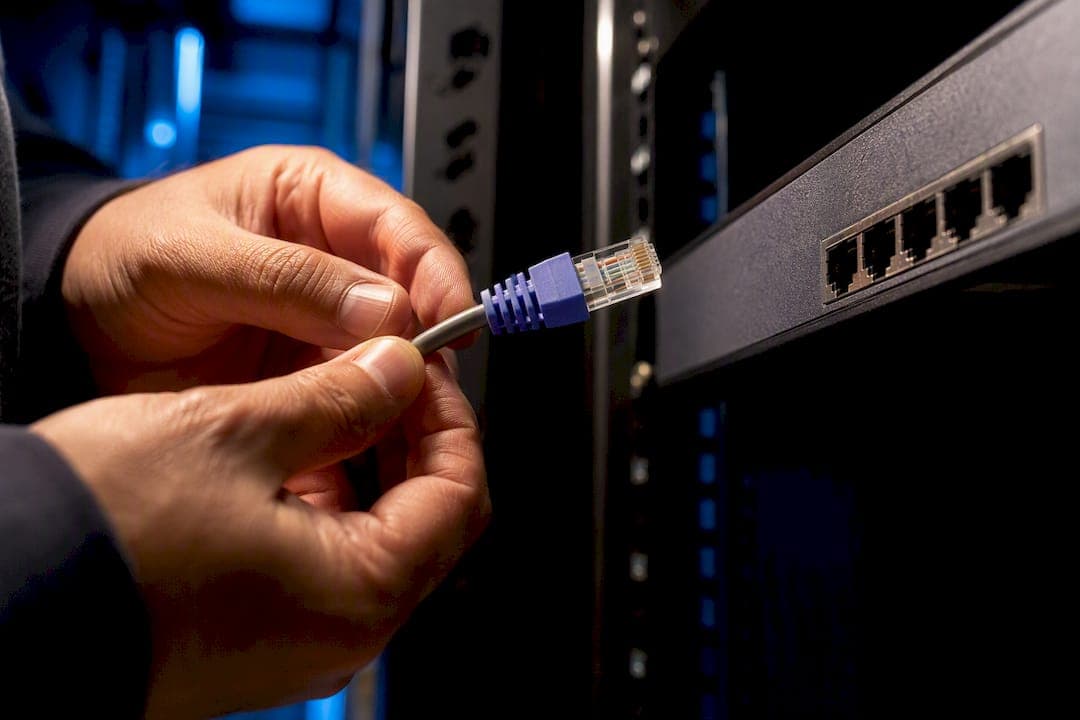
Run a PoE tester on the switch port, then swap in a known-good cable and a known-good device. That single test isolates switch, cable, or device faults in under five minutes. If the port shows no PoE at all, check per-port enable status and the switch's overall power budget before you touch anything else. If the port delivers power but the device stays dark, the fault has moved downstream, so head straight to cable and device bench tests.
TL;DR:
- Running a PoE tester with a known-good cable and device can identify switch, cable, or device faults within five minutes.
- Checking the switch's power budget and port configurations reveals common issues like budget exhaustion, port disablement, or class mismatches.
- Cable faults such as open pairs or excessive length often cause intermittent power drops, especially with CCA cables or near the 100-meter limit.
- If the switch and cable pass tests, device failure is likely due to signature negotiation issues or hardware faults, confirmed by swapping known-good devices.
- Implementing standardized troubleshooting workflows and remote monitoring tools can prevent repeat failures and speed up problem resolution across multiple sites.
Table of Contents
- Step 1: Quick Checks That Isolate the Fault Fast
- Switch-Level Checks: Power Budget, Port Class, and CLI Commands
- How Do You Diagnose Cable and Termination Problems?
- Why Would a Device Fail Even With Good Power and Cable?
- What Logs and Diagnostics Do You Need for a TAC Escalation?
- A Five-Minute Field Workflow You Can Repeat Every Time
- How Do You Prevent Repeat PoE Failures Across a Fleet?
- What Multi-Site Troubleshooting Actually Teaches You
- A Faster Way to Catch PoE Problems Before They Escalate
- Where to Go for Deeper PoE Diagnostic Reference
- Sources
Step 1: Quick Checks That Isolate the Fault Fast
Before you pull a cable tester or open a CLI session, run through a short sequence that tells you which of the three usual suspects, switch, cable, or device, is actually at fault. Field diagnosis guides consistently recommend testing at three points: the switch port, the far end of the cable, and the device itself.
- Plug a PoE tester into the switch port using a short, known-good patch cable. This confirms whether the port is delivering power at all.
- Move the suspect device to a different PoE port on the same switch. If it powers up, the original port or its cable run is the problem.
- Plug a known-good device into the suspect port. If that device also fails to power on, the port itself is likely bad.
- Check the port LED and run a quick CLI status check before escalating to deeper diagnostics.
This four-step pass usually tells you within minutes whether you're chasing a switch issue, a cable issue, or a dead endpoint.
Switch-Level Checks: Power Budget, Port Class, and CLI Commands
Once the quick checks point toward the switch, the next stop is the power budget and per-port configuration. Every PoE switch has a finite inline power pool, and once it's exhausted, new devices get denied power even when the port itself is healthy.
Start with these checks:
- Run
show power inlineto see total budget, power currently allocated, and per-port draw. - Compare allocated wattage against each port's negotiated class. A Class 4 device (up to about 30W under 802.3at) requesting power on a switch nearing its budget ceiling often gets denied silently.
- Check per-port admin state. A port set to
poe disableor a static class override will refuse to negotiate power even with a perfectly good cable and device. - Review priority settings. Lower-priority ports get cut first when budget runs short, which explains intermittent power loss on shared switches.
Switch-side fixes are often configuration problems rather than hardware failures: an administratively disabled port, a class mismatch, or a priority setting that deprioritizes a port during budget contention. These are quick fixes once you spot them.
Pro Tip: If show power inline shows the budget consistently pegged near its ceiling across multiple devices, don't just reset ports. Check show env power for PSU health. A degrading power supply looks a lot like a budget problem until you check voltage output directly.
How Do You Diagnose Cable and Termination Problems?
Cable faults are the most common cause of PoE power loss that survives a basic switch check, and they're often intermittent, which makes them maddening to chase. Voltage delivered at the device end should sit close to what the switch outputs, typically in the 44 to 57 volt range depending on the standard and device class. A PoE tester reporting a lower voltage than expected at the far end signals excessive voltage drop somewhere in the run.
Here's what to check and how to fix it:
- Run a wiremap test to check for open pairs, split pairs, or reversed polarity. Any pair fault on a 4-pair PoE run (required for 802.3at and 802.3bt) will cause power negotiation to fail or degrade under load.
- Use a TDR to locate the physical distance to a fault when a wiremap test flags a bad pair.
- Measure cable length against the 100 meter Ethernet limit. Runs pushed close to that ceiling combined with any termination flaw compound voltage drop fast.
- Check the cable jacket for CCA (copper-clad aluminum) markings.
CCA cable carries roughly 50% higher DC resistance than solid copper, which makes it a frequent silent cause of PoE failures on longer runs even when the wiremap test comes back clean. Re-terminate suspect ends first. If voltage drop persists, replace the run entirely, and route new high-power PoE runs on solid copper Cat6A rather than CCA or budget alternatives.
Why Would a Device Fail Even With Good Power and Cable?
If the switch port tests clean and the cable passes wiremap and voltage checks, the fault sits with the powered device itself. A few checks confirm it:
- Use a PoE tester to read the device's signature resistor and requested class. A missing or incorrect signature means the device isn't negotiating properly, even if it physically powers other equipment.
- Test the device on a PoE injector instead of the switch. If it works on the injector but not the switch, the issue is likely detection or class negotiation, not the device's power circuitry.
- Swap the suspect device with a known-good unit of the same model on the same port and cable. If the known-good unit powers up normally, you've confirmed device failure.
A device that behaves differently between an injector and a standards-based switch usually points to negotiation quirks or reserved budget behavior rather than a defective PD. That distinction changes whether you RMA the device or adjust switch configuration.
What Logs and Diagnostics Do You Need for a TAC Escalation?
When a fault won't resolve with basic checks, or it's intermittent enough that you can't reproduce it on demand, you need documented evidence before opening a support case. Vendor support teams, including Juniper's, expect you to have already ruled out basic physical and firmware issues before requesting an RMA.
Capture these outputs before you call:
show power inlinefor current budget, allocation, and per-port class negotiation.show envfor PSU voltage and temperature readings.show logfiltered around the time of the fault for power-denied or overdrawn events.debug ilpower porton the affected port, run only while reproducing the issue, since it's verbose.
Cisco's troubleshooting documentation lists common syslog messages worth recognizing: power-denied usually means budget exhaustion, overdrawn flags a device pulling more than its negotiated class allows, and invalid-class points to a signature or negotiation mismatch. If the fault is intermittent, time-stamp every occurrence and correlate it against temperature or budget logs before you package the case.
A Five-Minute Field Workflow You Can Repeat Every Time
The fastest technicians aren't smarter, they just run the same sequence every time instead of guessing. A small toolkit covers nearly every PoE fault: a PoE tester, a wiremap tester, a TDR, and a tone and probe kit for locating unlabeled runs. Among these, the PoE tester is the highest-value tool since it confirms voltage and class in seconds.
- Test the switch port with the tester and a short known-good patch cable.
- Test the device end of the run with the same tester.
- If voltage or class looks wrong, run a wiremap or TDR test on the cable.
- If the cable passes, bench-swap the device against a known-good unit.
- Document readings before escalating, since TAC will ask for them anyway.
Pro Tip: Print this five-step sequence and tape it inside your toolkit lid. Techs who follow a fixed order close tickets faster than those who improvise, because they stop reopening steps they already ruled out. A structured troubleshooting workflow like this one applies to PoE just as well as general connectivity faults.
How Do You Prevent Repeat PoE Failures Across a Fleet?
Most repeat PoE incidents trace back to the same handful of avoidable gaps: no budget headroom, undocumented cable runs, and stale firmware. Fixing these once saves dozens of truck rolls later.
- Calculate PoE headroom at 20 to 30% above your current draw so a firmware update or a new camera install doesn't push a switch into budget exhaustion.
- Set port priority explicitly for critical devices like access points and cameras, rather than relying on default priority order.
- Standardize on solid copper Cat6A for new high-power PoE+ and PoE++ runs, and avoid CCA cable on anything carrying 802.3at or 802.3bt loads.
- Label every port and run at install time. Undocumented cabling is the single biggest time sink during a fault investigation.
- Schedule quarterly budget audits and firmware checks, since thermal and power-related issues tend to surface gradually rather than all at once.
What Multi-Site Troubleshooting Actually Teaches You
Running the same five-step sequence across dozens of sites taught me something the vendor docs don't say outright: most PoE tickets aren't hardware failures, they're documentation failures. Techs waste time re-discovering facts a centralized system already knows, like which port sits near its budget ceiling or which run was terminated last quarter.
Standardizing the diagnostic order across a team cuts mean time to repair because nobody reopens a step someone already ruled out. Centralized visibility tools, including hardware like Vergepoints that expose on-site power and port data remotely, remove the guesswork of "has anyone already checked this port" before a truck even rolls.
— Jim
A Faster Way to Catch PoE Problems Before They Escalate
Some network monitoring platforms cut detection time on PoE faults from hours of manual port checking to real-time alerts the moment a port trips budget limits or a device stops negotiating power correctly.
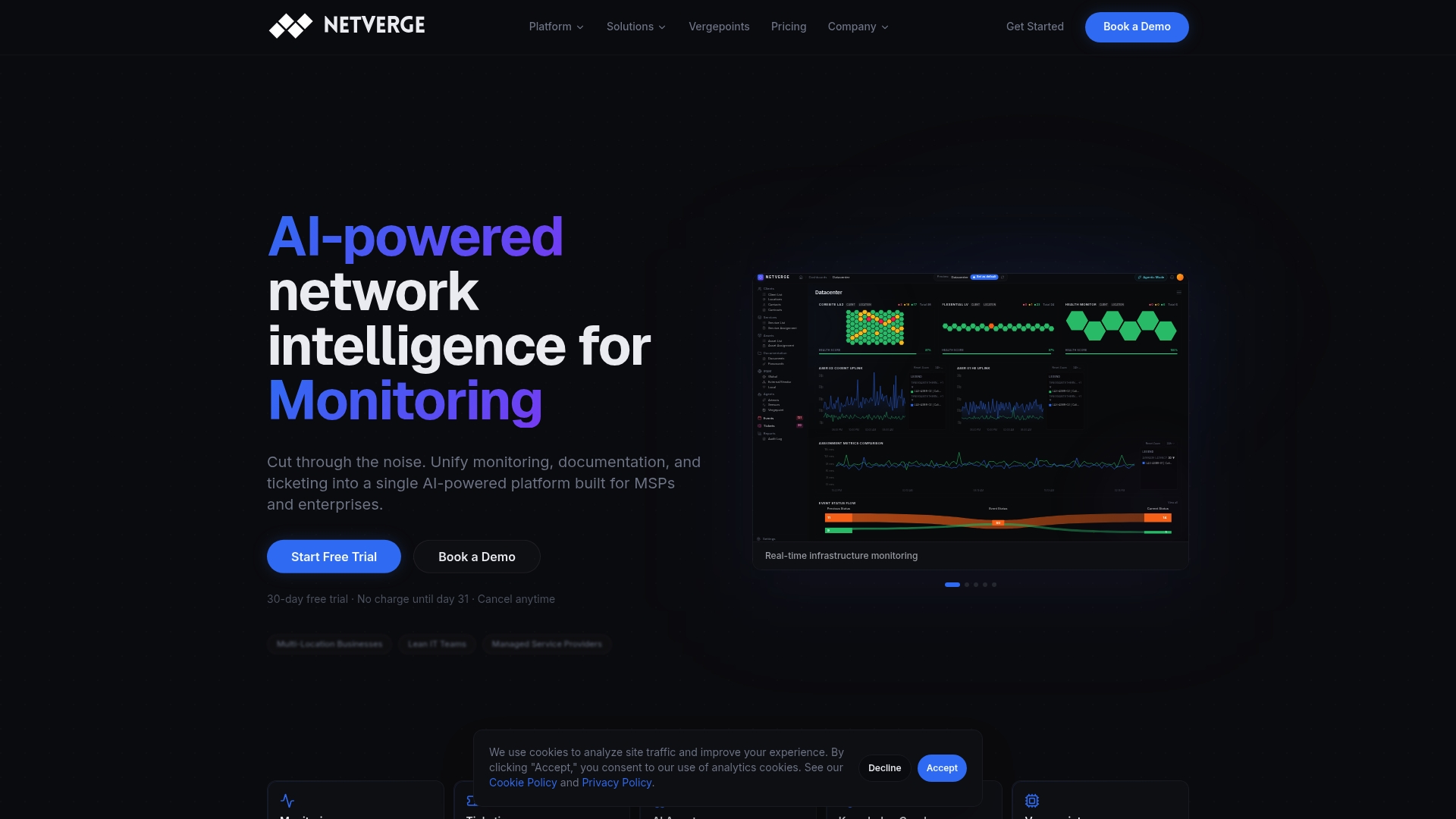
Field diagnostics still matter. No monitoring platform replaces a PoE tester in your hand when you're standing at a rack. But most PoE incidents don't need a technician on-site at all, they need someone watching the budget, the port state, and the syslog stream before the failure becomes a ticket. Netverge's monitoring platform tracks per-port power allocation and anomaly patterns across every switch in a fleet, and its AI agents can flag a budget-exhaustion pattern before it takes down a camera or access point. For MSPs managing dozens of sites, that centralized view turns a five-minute field workflow into a problem you catch before anyone drives out. Start with the Netverge platform to see how automated PoE anomaly detection fits into your existing switch fleet.
Where to Go for Deeper PoE Diagnostic Reference
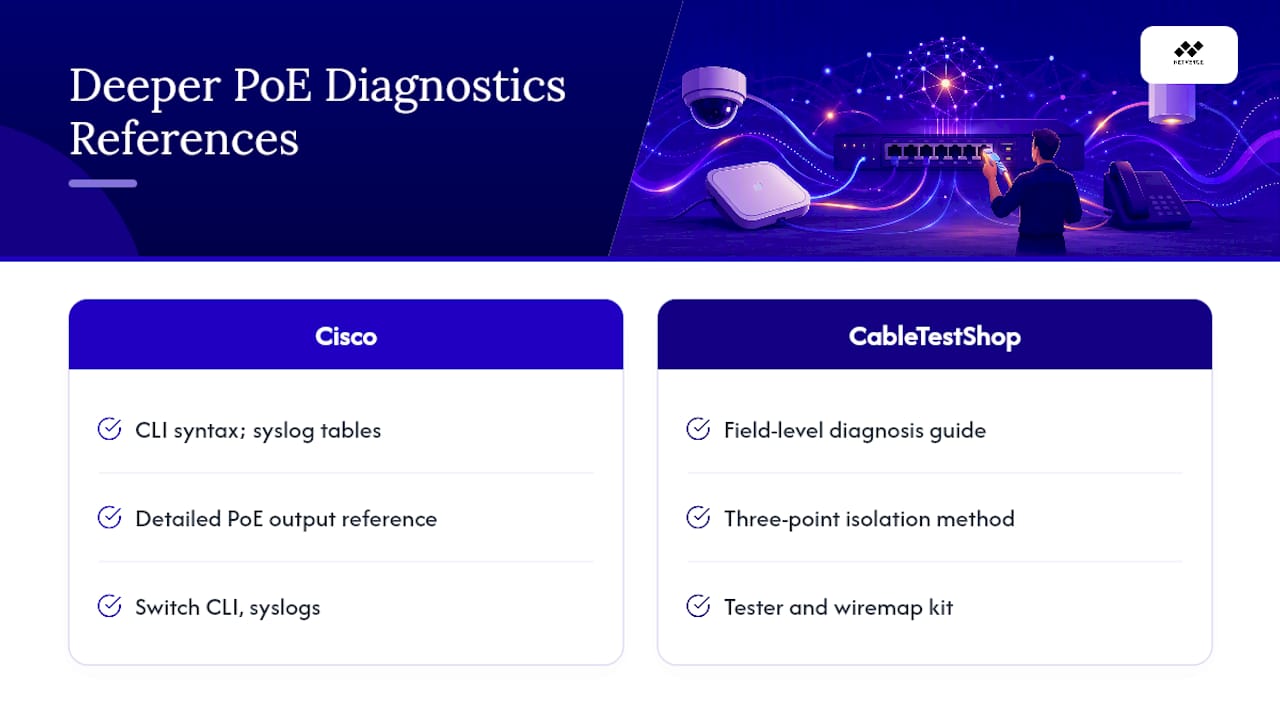
For full CLI syntax and syslog message tables, Cisco's Catalyst 9000 PoE troubleshooting guide covers debug ilpower output in detail. For field-level diagnosis with a tester and wiremap kit, CableTestShop's field guide walks through the three-point isolation method referenced throughout this article.
Sources
- How to Troubleshoot PoE Not Working: Field Diagnosis Guide | CableTestShop
- How to Diagnose PoE Power Issues: Step-by-Step Troubleshooting Guide – PoE Switches Manufacturer | Industrial IoT Solutions – Svelol Networks
- Troubleshoot Power over Ethernet on Catalyst 9000 Switches - Cisco