15 Minutes to Diagnose Enterprise DHCP With Packet Captures
Published
- DHCP configuration troubleshooting
- dhcp monitoring
- how to fix DHCP problems
- DHCP troubleshooting guide
- monitor dhcp server

The fastest way to resolve most DHCP outages is to verify Layer 2/3 reachability, capture the DORA exchange on UDP 67/68, and confirm scope and lease availability, in that order. Run three commands first: a sourced ping or traceroute from the affected VLAN to the DHCP server, ipconfig /all or dhclient -v on the client to check for an APIPA address, and a tcpdump or Wireshark capture filtered on UDP ports 67 and 68. Together, those three tests tell you whether you're looking at a network problem, a client problem, or a server problem.
TL;DR:
- Most DHCP outages are caused by relay misconfigurations, scope exhaustion, or firewall rules blocking UDP ports 67 and 68.
- Checking Layer 2/3 reachability and verifying DHCP service binding are the cheapest initial steps before packet capture analysis.
- Confirming scope utilization and lease availability quickly rules out scope exhaustion as a cause for no offers or address assignment issues.
- Client diagnosis via release and renew commands reveals if the issue is upstream network, relay, or server-related, especially when APIPA addresses appear.
- Cross-referencing logs and packet captures helps identify rogue servers, control-plane bottlenecks, or topology changes affecting DHCP reliability.
Table of Contents
- DHCP Troubleshooting Checklist: A Prioritized Triage Flow
- How Do You Check the DHCP Server Itself?
- Client-Side DHCP Troubleshooting: Commands That Actually Confirm the Fix
- Why Do Certain VLANs Lose DHCP While Others Work Fine?
- Reading a DORA Exchange in Wireshark or Tcpdump
- Correlating Logs With Packet Captures for a Clean Timeline
- Handling Scope Exhaustion, Rogue Servers, and Control-Plane Bottlenecks
- What Enterprise DHCP Failures Actually Teach You About Network Visibility
- A Faster Path to DHCP Visibility Across Every Site
- Quick Reference: Official Docs and Tools for DHCP Troubleshooting
- Sources
- FAQ
DHCP Troubleshooting Checklist: A Prioritized Triage Flow
Most DHCP incidents fall into a predictable pattern, and working through them in the wrong order wastes time you don't have during an outage. Before touching any configuration, nail down the scope of the symptom. A single laptop with an APIPA address is a completely different investigation than an entire floor losing connectivity at 9 AM.
Step 1: Confirm the symptom and its blast radius. Ask whether the problem affects one client, one VLAN, one site, or multiple sites. If it's one machine, you're likely dealing with a NIC driver, a bad cable, or a local firewall rule. If it's an entire subnet, the issue points toward the relay agent, the switch, or the DHCP server's scope for that subnet.
Step 2: Check other hosts on the same subnet. If one client fails to get a lease but its neighbor on the same switch port group succeeds, the problem is almost certainly client-side, not network-side. This single test eliminates half the possible root causes in under a minute.
Step 3: Verify the DHCP server is alive and listening. Confirm the DHCP service process is running and bound to UDP ports 67 and 68. A methodical approach that starts with client checks, moves to server checks, then network and relay cuts diagnostic time significantly compared to jumping straight to packet captures.
This is one of the most common root causes admins overlook because the service itself reports healthy.
Step 5: Test relay and VLAN reachability with sourced pings. From the relay's SVI or interface, ping the DHCP server, sourced from the client VLAN's interface. A response here confirms Layer 3 reachability; a timeout tells you routing or an ACL is in the way.
Step 6: Examine ACLs and firewall rules for UDP 67/68. Firewalls between the relay and the server, or between the client and a local gateway, silently drop broadcast-to-unicast relay traffic more often than admins expect, especially after a recent firewall policy change.
Step 7: Decide when to escalate to packet capture. If steps 1 through 6 don't reveal an obvious break, it's time to capture. Place one capture on the client segment and one on the server or relay's server-facing interface, so you can compare what leaves the client against what arrives at the server.
A quick reference for triage priority:
- Scope the symptom (single host, VLAN, or site)
- Cross-check a working host on the same subnet
- Confirm DHCP service status and port bindings
- Check scope and lease utilization
- Test relay and VLAN reachability
- Review ACLs and firewall rules on UDP 67/68
- Capture packets on both sides of the relay
The order matters because each step is cheaper than the next. A one-line ping test costs you ten seconds; a full packet capture with DORA analysis costs you fifteen minutes and a laptop with promiscuous mode enabled. Work cheap to expensive, not the other way around.
- Isolated single-client failures rarely need packet capture; a
dhclient -voripconfig /releasecycle usually surfaces the answer. - Site-wide failures almost always trace back to the server, the relay, or a recent network change, not the client fleet.
- Intermittent failures that come and go under load are the hardest category. They frequently point to control-plane exhaustion on relay switches rather than DHCP configuration at all, a pattern covered in more detail later in this guide.
How Do You Check the DHCP Server Itself?
Server-side diagnosis starts with confirming the DHCP process is actually running and bound to the ports it needs. On Windows Server, run Get-Service DHCPServer to confirm the service state, then use netstat -anb to verify something is listening on UDP 67. On Linux, systemctl status isc-dhcp-server (or dhcpd, kea-dhcp4, depending on your distribution) shows service health, and ss -ulnp | grep :67 confirms the bind.
Port conflicts are more common than most admins expect. Windows Deployment Services and PXE-related services can bind to ports that interfere with the DHCP service, especially on multi-role servers that host both DHCP and imaging infrastructure. If the service reports "running" but clients still time out, check for a second process quietly holding the port.
Scope and lease pool checks come next. On Windows, Get-DhcpServerv4ScopeStatistics -ScopeId 10.0.10.0 returns the percentage of the pool in use, along with the count of addresses in use versus free. On Linux, you'll typically need to parse /var/lib/dhcp/dhcpd.leases directly, or query Kea's lease database if you're running Kea DHCP. A scope showing 100% utilization explains a "no offer received" symptom just as completely as a dead service would.
Exclusion ranges deserve a second look here too. It's common for someone to add a static exclusion range for infrastructure devices and forget to shrink the active pool accordingly, quietly starving the scope of usable addresses as the client count grows.
Database health and event logs are your next stop. On Windows, check Event Viewer under DHCP Server logs for warnings and errors. Event ID 1042 typically flags a failure to update the DHCP database, and Event ID 1046 often points to a corrupt or unreadable database file. If the database is corrupted, Windows DHCP supports restoring from the backup directory (%systemroot%\System32\dhcp\backup by default) through the DHCP console's restore function.
On Linux, dhcpd logs to syslog by default, so journalctl -u isc-dhcp-server -f or grep dhcpd /var/log/syslog gives you a live or historical view. Look specifically for "no free leases" messages, which confirm scope exhaustion, and "bad udp checksum" entries, which sometimes indicate a NIC offloading issue on the server itself.
Failover and replication status matter more than most admins check. If you're running DHCP failover (Windows) or a similar HA pair on Linux/Kea, a split-brain or communication-interrupted state means one node may be issuing leases from a pool the other node believes is still reserved, and vice versa. Check failover relationship status directly in the DHCP console or via Get-DhcpServerv4Failover. Time sync deserves a mention here too: failover relationships and lease timestamps depend on accurate clocks, and a server that has drifted from NTP can report failover state incorrectly or reject lease renewals that appear to be from the future.
Pro Tip: Before assuming a scope is genuinely exhausted, check for a rogue static reservation list eating into your active range. A single misconfigured reservation block can silently remove 200 addresses from a /24 scope without ever appearing as "excluded" in a quick glance at the scope summary.
- Confirm the service is running and bound to UDP 67 with
Get-Serviceorsystemctl status. - Rule out port conflicts from WDS, PXE, or any secondary DHCP relay running on the same host.
- Check scope utilization with
Get-DhcpServerv4ScopeStatisticsor by parsing the Linux lease file directly. - Review Windows Event IDs 1042 and 1046, or Linux syslog entries for "no free leases," to spot database problems early.
- Verify failover/HA replication state and confirm NTP sync across both nodes in the pair.
Client-Side DHCP Troubleshooting: Commands That Actually Confirm the Fix
Once you've ruled out an obvious server or scope problem, the client itself needs a direct test. These commands don't just fix things, they tell you exactly what's broken by how the client responds.
- On Windows, run
ipconfig /releasefollowed byipconfig /renew. If renew fails to return a valid address and instead assigns something in the 169.254.x.x range, that's an APIPA address, meaning the client never received a DHCPOFFER at all. That points upstream, toward the network path or the server, not the client's NIC configuration. - On Linux, run
sudo dhclient -vfor verbose output showing each stage of the DORA exchange as it happens. The-vflag is what makes this useful. It shows you exactly which packet the client sent last before giving up, which tells you whether the DISCOVER even left the interface. - On macOS, use
sudo ipconfig set en0 DHCPto force a fresh DHCP negotiation on the specified interface, or fall back tosudo dhclient en0if the built-in command doesn't resolve it.
An APIPA address (169.254.x.x) confirms the client sent a DISCOVER and got nothing back within its retry window. This narrows the investigation to three candidates: the DHCP server is unreachable, the relay isn't forwarding correctly, or a firewall is blocking the broadcast-to-unicast relay traffic between the client's VLAN and the server. It does not mean the client's network stack is broken. The client did its job; something upstream didn't answer.
Before assuming a network fault, check the adapter's own configuration. A NIC accidentally set to a static IP instead of DHCP will never even attempt the DORA exchange, and this happens more often than admins expect after an OS reimage or a settings sync gone wrong.
Once a lease is granted, verify the DHCP options actually applied correctly. Run ipconfig /all on Windows or cat /etc/resolv.conf and ip route on Linux to confirm the gateway and DNS servers match what the scope is supposed to hand out. Missing or wrong DHCP options are one of the most common causes of "I have an IP but nothing works" tickets. A client that gets an address but no default gateway option will pull an address fine and then fail every connection outside its own subnet, which confuses users into reporting it as a "DHCP problem" when it's actually a DHCP options configuration error on the scope itself.
Why Do Certain VLANs Lose DHCP While Others Work Fine?
When one VLAN can't get leases while every other VLAN on the same server works normally, the relay agent is almost always where the problem lives. The DHCP relay agent inserts the GIADDR (gateway IP address) field into forwarded DISCOVER packets, and the DHCP server uses that field to determine which scope to offer an address from. If the server has no subnet declaration matching that GIADDR, it drops the request silently, with no error, no log entry that jumps out, nothing. This is one of the most overlooked causes of a single VLAN going dark while everything else on the network functions normally.
Start by checking the relay configuration directly on the router or Layer 3 switch. On Cisco gear, show run interface vlan X should show an ip helper-address pointing at your DHCP server's correct IP. If that line is missing, absent, or pointing to a decommissioned server, that VLAN's clients will never reach DHCP at all, no matter how healthy the server itself is.
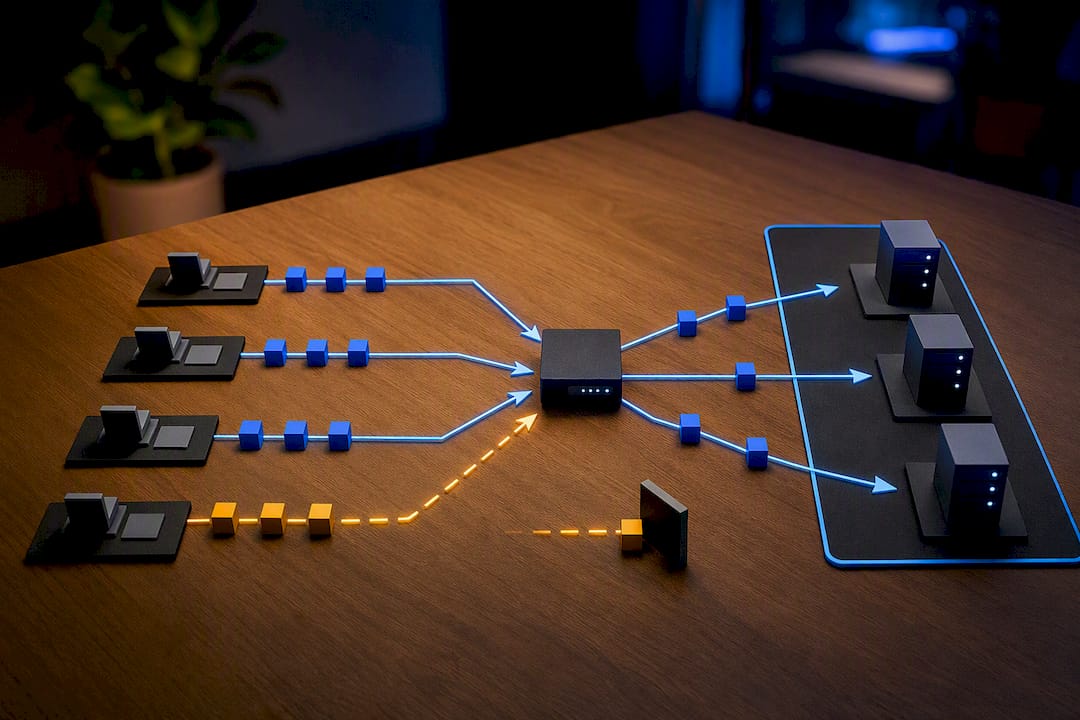
Verify Layer 3 reachability with a sourced ping: ping the DHCP server's IP from the relay's own SVI, explicitly sourcing the ping from the client VLAN's interface address. A successful ping confirms routing works; it does not confirm the DHCP server has a matching scope for that subnet, so don't stop there.
VLAN trunking and switch port membership deserve a check too. A port accidentally left in the wrong VLAN, or a trunk missing that VLAN in its allowed list, produces symptoms identical to a relay misconfiguration. Spanning Tree recalculation windows are worth remembering here as well: a topology change that triggers STP to recompute can drop broadcast traffic, including DHCP DISCOVER packets, for the several seconds it takes the port to transition back to forwarding.
- Confirm
ip helper-addressis configured on the correct SVI and points to a live DHCP server. - Verify the DHCP server has a subnet declaration matching the relay's GIADDR for that VLAN.
- Check switch port VLAN membership and trunk allowed-VLAN lists.
- Review relay agent counters and interface logs for forwarded-versus-dropped packet counts.
Pro Tip: If a VLAN's DHCP failures started right after a switch stack member reboot or a topology change, check STP port states before you touch the relay config at all. A port sitting in a blocking-to-forwarding transition can look exactly like a DHCP outage for the first 30 to 50 seconds after a topology event.
Reading a DORA Exchange in Wireshark or Tcpdump
Nothing settles a DHCP argument faster than a capture that shows exactly where the exchange broke down. Run tcpdump -i eth0 udp port 67 or udp port 68 -vv on the server side, and a Wireshark capture filtered on udp.port == 67 || udp.port == 68 on the client side, then compare what left the client against what the server actually received.
Missing DHCPOFFER packets typically trace back to relay misconfiguration or scope exhaustion on the server, while a missing ACK after a valid REQUEST usually points to a connectivity break or a policy block introduced somewhere between the REQUEST and the server's response. The table below maps what you'll see in a capture to where the failure most likely lives.
| Packet observed in capture | Likely failure point |
|---|---|
| DISCOVER sent, no OFFER received | Relay misconfiguration, scope exhaustion, or ACL blocking UDP 67 |
| OFFER received, no REQUEST sent | Client-side issue, often a rejected offer or duplicate address detection failure |
| REQUEST sent, no ACK received | Firewall or policy block between client and server, or a lease conflict |
| Full DORA completes, but client shows wrong gateway/DNS | Scope options misconfigured, not a connectivity problem |
For active testing without waiting for a real client to fail, nmap's broadcast dhcp discover script lets you emulate a DHCP client from any machine on the segment and see exactly what the server offers, without needing physical access to the affected endpoint.
When capturing on a relay agent's interfaces, capture both sides separately: the client-facing interface shows broadcast DISCOVER packets with GIADDR still at 0.0.0.0, while the server-facing interface shows the relay's translated unicast packets with GIADDR populated. Comparing the two capture points tells you definitively whether the relay is doing its job or silently dropping traffic before translation.
- Capture on UDP 67/68 on both the client segment and the server or relay's server-facing interface.
- Compare GIADDR fields between client-facing and server-facing captures to confirm relay translation is happening.
- Use nmap's DHCP discovery scripts to actively probe scopes without waiting for a live failure to reproduce.
- Treat a complete DORA sequence with wrong options as a scope configuration issue, not a network reachability issue.
Correlating Logs With Packet Captures for a Clean Timeline
A capture tells you what happened on the wire; the logs tell you what the server or switch thought was happening at the same moment. Pulling both together, timestamp by timestamp, is usually what turns "the network is flaky" into a concrete root cause you can actually fix.
On Windows, DHCP Server audit logs live under %systemroot%\System32\dhcp by default, and Event Viewer's DHCP Server log surfaces service-level warnings and errors directly. PowerShell's Get-WinEvent -LogName "Microsoft-Windows-DHCP Server Events/Operational" lets you query and filter those events by time range, which speeds up correlation against a capture's timestamps considerably.
On Linux, dhcpd logs through syslog, so journalctl -u isc-dhcp-server --since "10 minutes ago" or a targeted grep DHCPACK /var/log/syslog narrows down exactly when leases were issued or denied. Kea deployments log to their own configured output, typically in JSON format, which is worth piping through jq for readability during an active incident.
Router and switch logs matter just as much here. Look for ICMP redirect messages, ACL deny counters incrementing on the interface facing the DHCP relay, and CoPP (control-plane policing) drop counters, all of which can explain intermittent DHCP failures that never show up in the DHCP server's own logs at all.
- Pull Windows DHCP audit logs and correlate against Event Viewer's operational log for the same time window.
- Use
journalctlwith a--sincefilter on Linux to narrow log volume before searching for DHCPACK/DHCPNAK entries. - Check router and switch logs for ICMP redirects, ACL deny counters, and CoPP drops during the incident window.
- Align packet capture timestamps with server and switch log timestamps to build one coherent sequence of events.
Handling Scope Exhaustion, Rogue Servers, and Control-Plane Bottlenecks
Scope exhaustion rarely announces itself cleanly. It shows up as a slow trickle of "can't get an IP" tickets that grows over hours or days, not an outage that starts and stops at a clear moment. Leak sources worth checking first: forgotten static reservations, orphaned leases from decommissioned devices that never released cleanly, and DHCP guest networks with lease times set too long for the churn they actually see.
Rogue DHCP servers are a different animal entirely, and they're a security problem as much as an availability one. A misconfigured switch, an employee's home router plugged in backward, or a compromised device can all start answering DHCP DISCOVER broadcasts and handing out bad gateway or DNS information. Packet captures reveal a rogue server quickly: watch for two different OFFER packets from two different source MAC addresses responding to the same DISCOVER. Active probing with nmap's DHCP discovery script from multiple points on the network helps isolate exactly which switch port the rogue device is hanging off of, so you can shut the port down without taking down legitimate traffic.
Control-plane bottlenecks on relay switches are a subtler and more frustrating cause of intermittent DHCP failures. ICMP redirects and other traffic punted to the switch CPU can queue alongside DHCP broadcast processing, and under load, DHCP packets lose that race. This shows up as DHCP that works fine most of the time and mysteriously fails during peak hours, which sends most admins chasing a configuration change that never happened. Disabling ip redirects on the relevant interfaces and tuning CoPP policies to prioritize DHCP traffic are the standard mitigations here.
- Set proactive alerting on scope utilization at 85% rather than waiting for a full pool to trigger tickets.
- Treat duplicate OFFER packets from different MAC addresses in a capture as a rogue DHCP server, not a glitch.
- Check CoPP queue drops and ICMP redirect volume on relay switches before assuming a configuration error during intermittent, load-correlated failures.
- Keep DHCP databases backed up on a schedule, run failover or HA pairs where uptime matters, and require change control review before scope or relay modifications.
Pro Tip: If DHCP failures correlate suspiciously well with your busiest traffic hours but never show up in the DHCP server's own event log, stop looking at the server. Pull CoPP drop counters from the relay switch first. That combination of symptoms points at the control plane almost every time.
PXE boot clients add one more layer worth a quick note: a PXE client relies on DHCP options 66 and 67 (or the vendor-specific PXE options) to locate its boot server, and if a scope is missing those options or another service on the network is answering with conflicting PXE information, boot clients will either time out or boot from the wrong image entirely. Check for exactly one DHCP/PXE responder per broadcast domain before troubleshooting PXE as if it were a purely DHCP problem.
What Enterprise DHCP Failures Actually Teach You About Network Visibility
Working through the Netverge "Two Week Proof" case study on phased automated troubleshooting made one pattern obvious: the slowest part of most DHCP incidents isn't fixing the problem, it's finding it. Mean time to identify, not mean time to repair, is where hours get lost chasing symptoms across disconnected tools, one dashboard for the switch, another for the DHCP server, a third for firewall logs, none of them talking to each other.
Correlated telemetry changes that math directly. In more than one case reviewed for that phased automated troubleshooting case study, a relay misconfiguration that would have taken an admin an hour of manual log-hunting to find showed up almost immediately once DHCP logs, relay interface counters, and packet samples sat in one correlated view. The same held true for control-plane bottlenecks: a switch quietly dropping DHCP broadcasts under CoPP pressure looked like a mystery in isolation, but the pattern was obvious the moment CPU queue metrics sat next to DHCP failure timestamps on the same timeline.
None of this replaces the fundamentals covered above. You still need to understand DORA, still need to read a capture, still need to know what a missing OFFER versus a missing ACK actually means. What changes is how fast you get from symptom to root cause when the telemetry that used to live in five separate places lives in one.
— Jim
A Faster Path to DHCP Visibility Across Every Site
Manual DHCP troubleshooting works, but it doesn't scale across dozens of sites with the same admin headcount you had at one. Netverge closes that gap by putting DHCP health, relay counters, and packet-level telemetry into one correlated view instead of five separate tools you have to check by hand during an incident.

Hardware Vergepoints give you on-site visibility at every location, capturing local telemetry and packet samples so a remote team can spot a relay misconfiguration or a scope nearing exhaustion before it turns into a help desk ticket. Anomaly detection flags lease pool utilization trending toward exhaustion or a rogue server answering DISCOVER broadcasts, and autonomous agents can triage the alert and hand your team a diagnosis instead of a raw log dump. For MSPs and multi-site enterprises running the exact checklist covered in this guide across dozens of locations at once, that correlation is the difference between reactive firefighting and catching the problem in the monitoring dashboard first.
The Starter Package runs $299 per month and gets your team into the platform to see what unified DHCP and network visibility looks like across your own infrastructure. Start a trial or request a demo to see how Netverge handles your specific site topology.
Quick Reference: Official Docs and Tools for DHCP Troubleshooting
For deeper reference during a live incident, keep these bookmarked:
- Microsoft's DHCP troubleshooting guidance for DORA-level diagnostics on Windows Server.
- Troubleshoot problems on the DHCP server for service and port-binding issues.
- Cisco's Catalyst 9000 DHCP relay troubleshooting guide for control-plane and CoPP-related failures.
- Wireshark download page for packet capture and DORA analysis.
- Nmap's broadcast-dhcp-discover script for active DHCP scope testing.
- TechTarget's DHCP server failure troubleshooting guide for a broader symptom-to-remediation reference.
Sources
- DHCP troubleshooting guidance
- Troubleshoot DHCP Issues on Catalyst 9000 DHCP Relay Agents
- Troubleshooting a DHCP Server Failure
- Wireshark — Download
FAQ
How Do You Troubleshoot DHCP?
Start by scoping the symptom to a single client, VLAN, or site, then check whether the DHCP service is running and reachable before capturing packets on UDP 67/68 to see exactly where the DORA exchange breaks down.
How Do You Fix a DHCP Problem?
Most fixes trace back to one of three causes: a relay misconfiguration or missing ip helper-address, an exhausted scope with no free leases, or a firewall/ACL blocking UDP 67/68 between the client and server.
How Do You Test if DHCP Is Working?
Run ipconfig /release and /renew on Windows, or dhclient -v on Linux, and watch whether the client receives a real lease or falls back to an APIPA address in the 169.254.x.x range, which confirms it never got an offer.
How Do You Reset DHCP on a Client?
On Windows, run ipconfig /release followed by ipconfig /renew; on Linux, run sudo dhclient -r to release the current lease and sudo dhclient -v to request a fresh one with verbose output.
What Causes DHCP Lease Conflicts?
Lease conflicts typically happen when a static reservation overlaps an active scope range, when a device holds onto an old lease past its expected renewal, or when two DHCP servers on the same broadcast domain both believe they own the same address pool.